
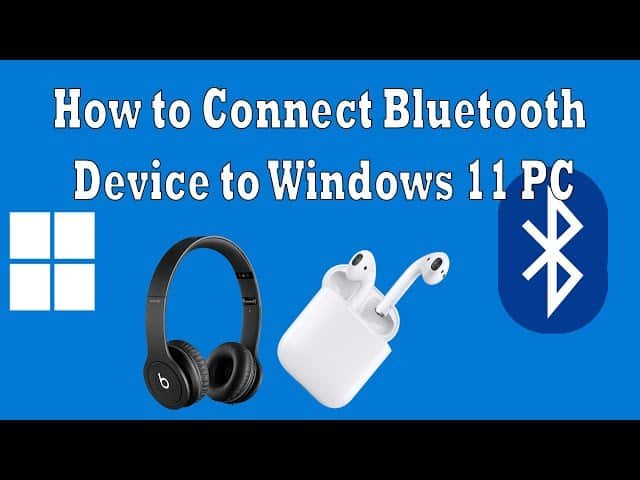
Turn on pairing mode, enable Bluetooth on your PC, choose your headphones, then click Pair.
If you want a clear, frustration-free path for how to connect Bluetooth headphones to PC, you’re in the right place. I help people solve Bluetooth hassles every day, from first-time pairings to stubborn driver issues. In this guide, you’ll learn how to connect Bluetooth headphones to PC fast, set them as default, and fix the most common problems with simple steps you can trust.

Source: wikihow.com
Bluetooth basics you should know before pairing
Bluetooth on a PC uses profiles. For music, your PC uses A2DP. For calls, it uses HFP or HSP. Many headsets create two devices in Windows. One is stereo for music. The other is hands-free for calls. Knowing this helps you pick the right one in Sound settings.
Codecs shape audio quality and delay. SBC is the default and works on all devices. AAC is common on Apple gear. aptX, aptX HD, and LDAC can raise quality, but support depends on your adapter and drivers. Newer Windows builds also add LC3 for LE Audio on some devices.
Bluetooth versions matter too. A Bluetooth 5.0 or newer adapter can improve range and stability. It can also lower power use. Still, the biggest gains come from good drivers and clean radio conditions.
If you learn how to connect Bluetooth headphones to PC with these basics in mind, pairing becomes easy. You also avoid the most common audio mix-ups later.
Source: youtube.com
Step-by-step: how to connect Bluetooth headphones to PC (Windows 11 and Windows 10)
Follow these steps to master how to connect Bluetooth headphones to PC. Keep your headphones close to your computer, and charge them first.
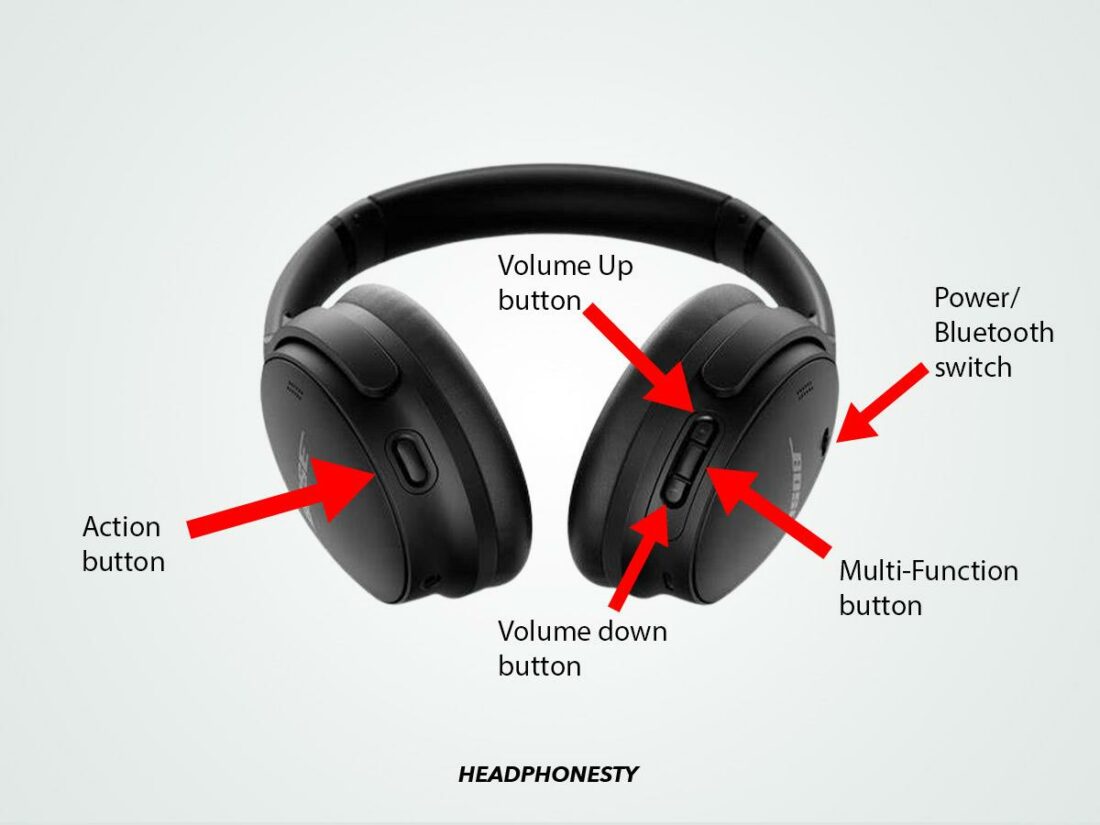
Put your headphones in pairing mode
- Turn off the headphones.
- Hold the power or Bluetooth button until the LED flashes fast. Most models use blue or white.
- If your headset has voice prompts, listen for “pairing” or “ready to pair.”
Tip: If the PC cannot find them, reset your headphones. Many brands use a long press of power or volume keys. Check your manual.
Windows 11
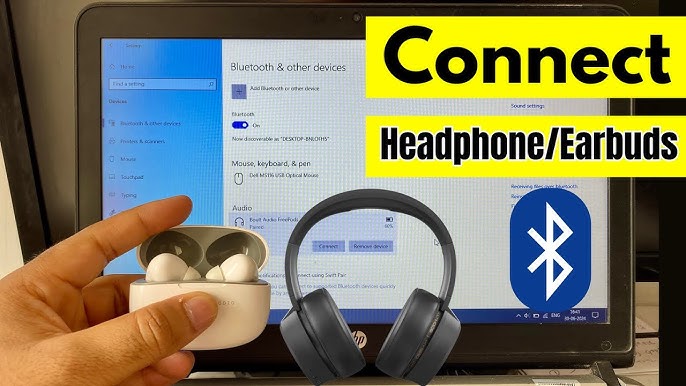
- Open Settings. Press Windows key + I.
- Click Bluetooth & devices. Turn Bluetooth On.
- Click Add device. Choose Bluetooth.
- Select your headphones from the list. Click Pair.
- Wait for “Connected voice, music” or similar.
To choose the right output:
- Click the volume icon on the taskbar.
- Use the dropdown arrow next to the volume slider.
- Pick the device that has Stereo or Headphones in the name.
Windows 10
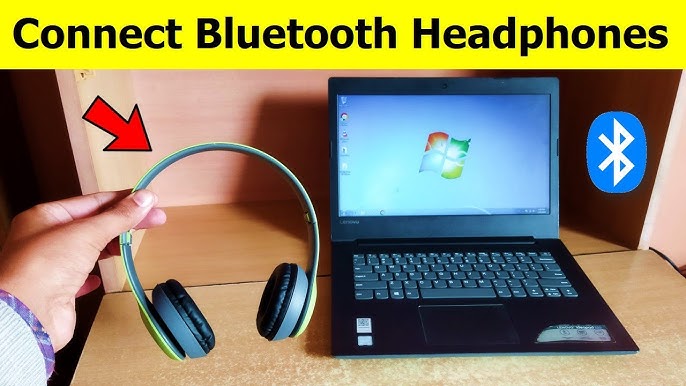
- Open Settings. Click Devices.
- Turn Bluetooth On.
- Click Add Bluetooth or other device. Choose Bluetooth.
- Select your headphones. Click Connect.
- Wait for the confirmation.
To set the correct output:
- Click the speaker icon on the taskbar.
- Click the device name at the top of the volume slider.
- Choose your headphones (Stereo).
At this point, you know how to connect Bluetooth headphones to PC the right way. If you ever switch computers or phones, repeat these steps from pairing mode.
Source: afvt.org
Make your headphones the default and tune your sound
After you learn how to connect Bluetooth headphones to PC, set them as default. This sends all audio to the right place.
Windows 11
- Open Settings. Click System, then Sound.
- Under Output, pick your headphones (Stereo).
- Click the arrow on your device. Set it as Default for audio.
- Under Input, pick the hands-free device only if you need the mic.
- In Advanced, open Volume mixer to set per-app outputs.
Windows 10
- Right-click the speaker icon. Click Open Sound settings.
- Set Output to your headphones (Stereo).
- Set Input to the hands-free device only for calls.
- Click App volume and device preferences if you need per-app routing.
Pro tip for quality
If you never use the headset mic, disable the hands-free device:
- Control Panel. Sound. Recording tab.
- Right-click your headset’s Hands-Free device. Disable.
- Do the same under Playback if a Hands-Free profile shows there.
This removes the low-quality call profile and locks in clean stereo music. It is a simple way to make how to connect Bluetooth headphones to PC result in better sound every time.
Source: youtube.com
Fix common problems when you connect Bluetooth headphones to PC
When people ask how to connect Bluetooth headphones to PC without issues, they often face the same roadblocks. Here is how I solve them in the field.
Device not showing up
- Turn Bluetooth Off and On in Windows.
- Put the headphones back in pairing mode.
- Forget the device if you see it listed. Then Add it again.
- Reboot the PC. Try one more time.
Already connected to something else
- Turn off Bluetooth on your phone or tablet.
- Reset multipoint on the headset if it supports two devices.
- Pair the PC first, then add your phone second.
Driver or adapter trouble
- Update Windows. Then update the Bluetooth driver in Device Manager.
- If you use a USB dongle, install the vendor’s driver package.
- Try a different USB port. A front port or a short USB extension can cut interference.
- If your PC lacks Bluetooth, buy a USB Bluetooth 5.x adapter.
Audio stutter or lag
- Keep a clear line of sight. Move away from a busy Wi‑Fi router.
- Switch your Wi‑Fi to 5 GHz or change the 2.4 GHz channel.
- Close apps that use the mic when you only want music.
- Use a low-latency codec if both sides support it. For gaming, consider a 2.4 GHz dongle from your headset brand.
Mic not working in apps
- In Windows Privacy settings, allow microphone access for the app.
- Pick the Hands-Free device as Input in the app.
- In Teams, Zoom, or Discord, choose the correct Input and Output in their settings.
Pairing succeeds but no sound
- Choose the Stereo device as Output in Sound settings.
- Disable Hands-Free in Playback if it steals default status.
- Remove and re-add the headphones if the profile is stuck.
Sleep and resume issues
- Turn Bluetooth Off and back On after wake.
- Update your chipset and Bluetooth drivers.
- If it keeps happening, uncheck “Allow the computer to turn off this device to save power” for your Bluetooth adapter in Device Manager.
In my home office, my laptop sometimes lost audio after sleep. Reinstalling the Bluetooth driver fixed it at once. Small tweaks like this turn a rough day into smooth sound.

Source: wikihow.com
Pro tips, real-world wins, and gear I trust
Here is what I have learned helping others master how to connect Bluetooth headphones to PC in busy offices and home studios.
Practical pairing habits
- Pair at your desk, not across the room. Strong signal equals quick success.
- Clear old pairings on the headset if it holds too many devices.
- Name your devices in Windows so you know which one to pick fast.
Better sound without guesswork
- Use the Stereo profile for music. Use Hands-Free only when you need the mic.
- Disable Hands-Free when you stream or edit audio. It keeps the quality high.
- If your app supports it, route music to Stereo and calls to Hands-Free.
Hardware that saves the day
- A good USB Bluetooth 5.2 or 5.3 dongle can beat flaky built-in radios.
- For gaming, a brand’s 2.4 GHz dongle often beats Bluetooth for latency.
- Class 1 adapters can extend range in large rooms.
On codecs and standards
- SBC always works. It is the safe baseline.
- Some Windows setups support aptX or LC3, but not all. Your adapter, drivers, and headset must all agree.
- LE Audio and LC3 are growing, yet classic Bluetooth (A2DP, HFP) still rules today.
Environmental wins
- Keep the dongle away from metal cases. A short USB extension can help.
- Move your router or switch the Wi‑Fi band to reduce 2.4 GHz noise.
- Stop heavy Bluetooth sharing during calls. Too many streams can cause skips.
If you practice these tips while learning how to connect Bluetooth headphones to PC, you will enjoy stable links, clear calls, and music that just works.

Source: youtube.com
Frequently Asked Questions
Why do my Bluetooth headphones show two devices in Windows?
One is the Stereo profile for music. The other is the Hands-Free profile for calls with a mic.
Can I use my headset mic and still get high-quality music?
Not at the same time over classic Bluetooth. When the mic is active, Windows uses the Hands-Free profile, which lowers audio quality.
What is the fastest way to pair on Windows 11?
Open Settings, Bluetooth & devices, then Add device. Put the headset in pairing mode and select it. It takes under a minute on most PCs.
Do I need a USB Bluetooth adapter if my PC has Bluetooth?
Only if your built-in radio is weak or old. A modern USB adapter can boost range, stability, and codec support.
Why is there audio delay when watching videos?
Bluetooth adds some latency. Use a low-latency codec if both sides support it, or use a 2.4 GHz dongle or a wired mode for perfect sync.
My PC says “Connected,” but I hear sound from speakers. What now?
Pick the headphones as the Output device in Sound settings. Also set them as Default to lock it in.
Will LE Audio fix my call quality and delay?
LE Audio with LC3 can improve both, but support varies by adapter, OS build, and headset. Check all components for compatibility.
Conclusion
You now know how to connect Bluetooth headphones to PC, set the right defaults, and fix the top pairing issues. Keep your steps simple, your drivers current, and your signal clear. Small moves lead to great sound.
Ready to make it stick? Pair your headphones today, fine-tune your Sound settings, and save this guide for quick wins later. Want more tips like this? Subscribe, share your setup, or drop a question so I can help you dial it in.
3 Comments