
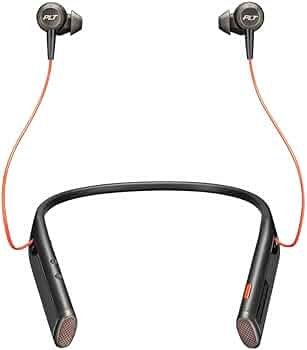
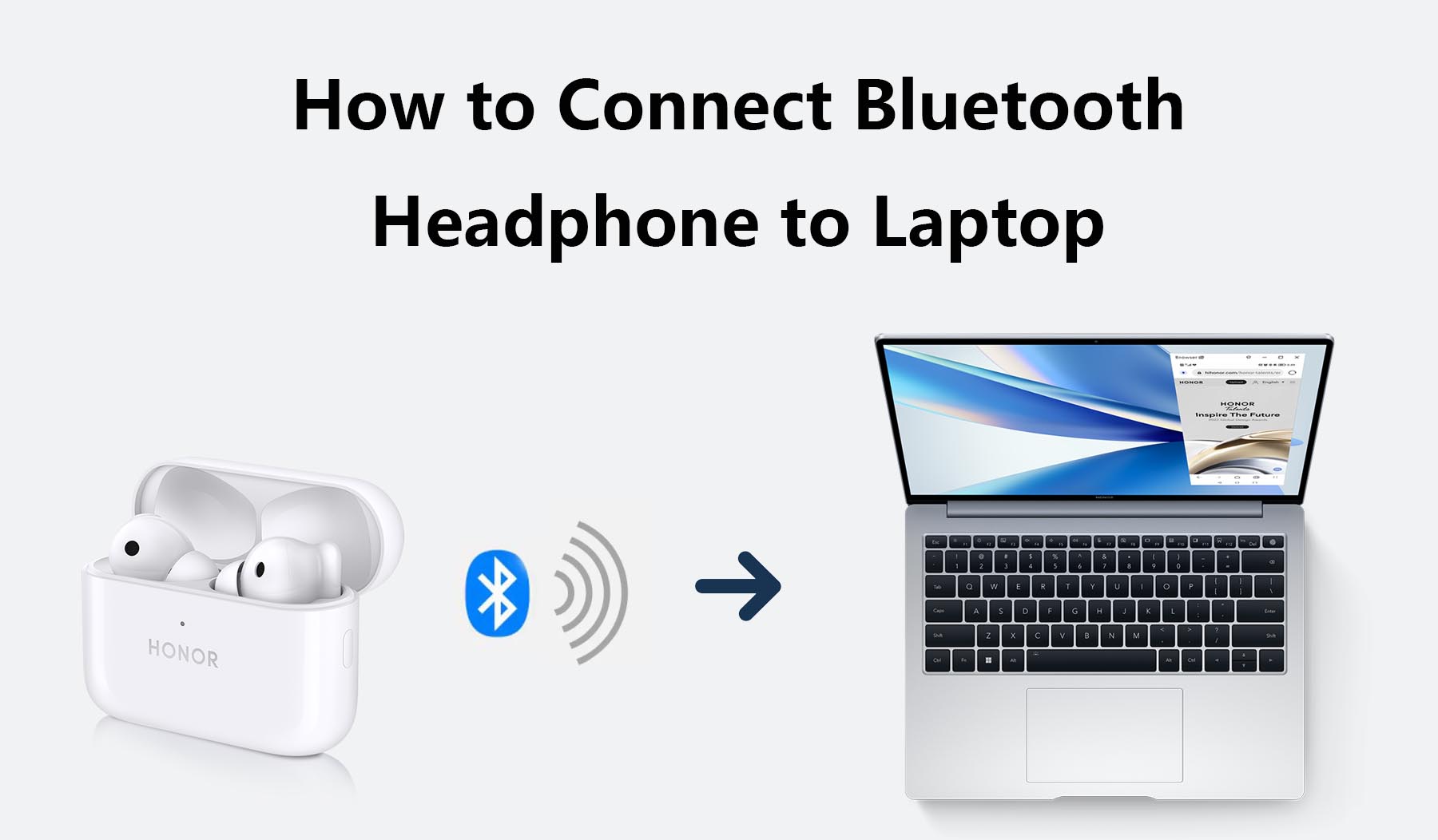
Turn on Bluetooth, put your neckband in pairing mode, then connect in Settings.
If you have ever wondered how to connect neckband to desktop computer, you are in the right place. I help people set up audio gear every week, from office desks to gaming rigs. In this guide, I will show you how to connect neckband to desktop computer with clear steps, simple checks, and real fixes I use for clients. You will learn the fast way and the expert tips that make the sound stable and clean.
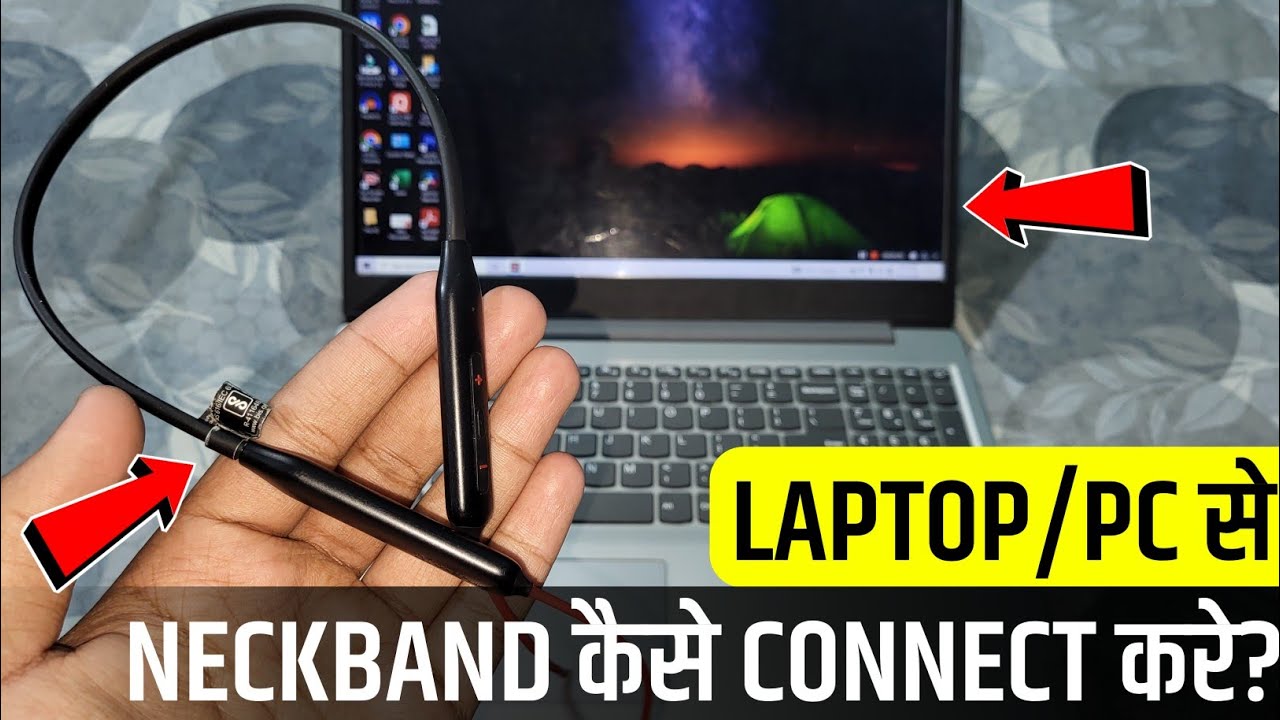
What you need before you start
A smooth setup starts with a quick checklist. Most issues I see come from missing one small step.
- Check if your desktop has Bluetooth. If not, you will need a USB Bluetooth adapter.
- Charge your neckband to at least 50%. Low battery can block pairing or cause drops.
- Find the pairing button or key combo. Most neckbands enter pairing by holding the power button for 3–5 seconds until a flashing light appears.
- Update your operating system. New Bluetooth stacks fix a lot of bugs.
- Keep the user manual nearby. Every brand has small differences.
- Clear old pairings if the neckband refuses to connect. Hold the power button longer, or press power and volume keys together, per the manual.
If you are figuring out how to connect neckband to desktop computer for the first time, this prep saves time and stress.
How to connect neckband to desktop computer on Windows 10 and Windows 11
Windows makes this simple when you follow the right order.
- Turn on your neckband and enter pairing mode. Watch for a blinking LED or a voice prompt.
- On your PC, open Settings. Click Bluetooth & devices, then turn Bluetooth On.
- Click Add device, choose Bluetooth, then select your neckband from the list.
- Wait for Connected voice or notice. If asked, allow pairing or confirm a code.
- Set it as your sound device. Right-click the speaker icon. Open Sound settings. Choose your neckband under Output and, if you need the mic, under Input.
- For calls, Windows may show two entries. Choose your neckband Hands-Free for mic use, or Stereo/A2DP for music quality.
I use this exact flow on client machines to teach how to connect neckband to desktop computer fast. If it fails, remove the device and try again with the neckband close to the PC.

macOS and Linux quick steps
macOS
- Put the neckband in pairing mode.
- Open System Settings. Click Bluetooth. Find and Connect to your neckband.
- Go to Sound. Set Output to your neckband. Set Input to it if you want the mic.
- For the best music quality, keep Output on Stereo. For calls, your Mac will auto-switch to hands-free.
Linux (GNOME/Ubuntu-like)
- Put the neckband in pairing mode.
- Open Settings. Click Bluetooth. Pair with your neckband.
- Open Sound. Select the device under Output and Input.
- If voice sounds rough, switch profiles. In Sound, choose High Fidelity Playback (A2DP) for music or Headset Head Unit (HFP/HSP) for calls.
These steps also answer how to connect neckband to desktop computer when you run non-Windows systems at home or work.

Picking the right USB Bluetooth adapter (if your PC has no Bluetooth)
Many desktops do not include Bluetooth. A solid USB dongle fixes that.
- Choose Bluetooth 5.0 or newer. You get longer range and better stability.
- Look for drivers that work with Windows 10 and 11 out of the box. That makes install easy.
- Check codec support. If you care about latency, seek aptX Low Latency support. Mac users do well with AAC.
- Use a USB extension cable to move the adapter to the front of the PC. This reduces interference from the case and Wi‑Fi antennas.
- Avoid unbranded adapters. I see the most dropouts and driver pain from those.
How to connect neckband to desktop computer with a dongle
- Plug in the adapter. Let Windows install drivers.
- Turn on Bluetooth in Settings if needed.
- Pair your neckband as shown earlier, then set it as Output and Input as needed.
I keep a small pouch of tested adapters in my kit. It turns a 30-minute headache into a 3-minute win. It is the smartest path when learning how to connect neckband to desktop computer on older towers.
Use the neckband microphone for calls and meetings
Using the mic changes the audio profile.
- Music mode uses A2DP Stereo. It sounds great but does not carry mic audio.
- Call mode uses HFP/HSP Hands-Free. It enables the mic but drops music quality a bit.
- For Zoom, Teams, or Discord, open the app’s audio settings. Pick your neckband for Speaker and Microphone.
- In Windows Sound, you can set your neckband as Default Communications Device. Music stays in stereo. Calls switch to hands-free when needed.
When I train teams, I show both profiles and let them test. Knowing this prevents the “why does my music sound flat during calls?” question. It also clears confusion around how to connect neckband to desktop computer for both work and play.

Wired and USB-C options when Bluetooth is not an option
Some neckbands support wired audio. Not all do, so check your model.
- 3.5 mm cable. If your neckband and PC support it, plug in and select the proper device. The mic may not work over 3.5 mm unless both ends support TRRS.
- USB-C audio. Some neckbands pass digital audio over USB-C. Connect a USB-C to USB-A cable to your PC. Select it in Sound settings.
- Airplane-safe mode. Many neckbands disable Bluetooth in wired mode. That can save battery during long sessions.
This is a stable plan when you need zero latency for tracking or quick edits. It also helps when you are still figuring out how to connect neckband to desktop computer in a high-interference office.
Troubleshooting: fast fixes that actually work
These are the fixes I use on-site.
- Device not found. Reset the neckband. Remove old pairings. Keep it within 3 feet of the adapter.
- Connected, no sound. Set it as the default Output. Check app-specific audio settings.
- Mic not working. Select the Hands-Free entry or Input device in your app.
- Random drops. Move the dongle away from USB 3.0 ports and hard drives. They leak 2.4 GHz noise.
- Audio delay in games. Use aptX LL or a low-latency transmitter. Close heavy Bluetooth traffic like file transfers.
- Driver conflicts. In Device Manager, remove the adapter and reinstall. Update chipset drivers and Windows.
- Multipoint confusion. Turn off Bluetooth on your phone while pairing to the PC. Add the phone after.
When a client asks how to connect neckband to desktop computer and keep it stable, these steps solve 90% of issues.

Advanced tips for better sound and stability
Small tweaks make a big difference.
- Match codecs when you can. Windows supports SBC and sometimes AAC. Many adapters add aptX, aptX HD, or aptX LL.
- Place the adapter high and clear. A small USB extension on your monitor stand works wonders.
- Prefer 5 GHz Wi‑Fi if possible. It frees space for Bluetooth on 2.4 GHz.
- Update firmware on both the neckband and adapter. Bugs vanish after updates.
- Explore LE Audio as it rolls out. LC3 brings better sound at lower bitrates and smoother multi-device use.
If your goal is not only how to connect neckband to desktop computer but also how to keep it crisp and responsive, these are the pro moves.
Safety, battery care, and smart habits
Good habits protect your ears and your gear.
- Follow the 60/60 rule. Keep volume under 60% and limit long sessions.
- Charge with a quality cable and charger. Cheap bricks can cause noise while charging.
- Store the neckband dry and flat. Wipe sweat after workouts.
- Every few weeks, clear pairings and re-pair. It keeps links fresh and fast.
These simple steps pair well with everything you learn about how to connect neckband to desktop computer and enjoy it daily.
Frequently Asked Questions of how to connect neckband to desktop computer
Why can’t my PC see my neckband?
Your PC may not have Bluetooth turned on, or the neckband is not in pairing mode. Turn Bluetooth on and reset the neckband’s pair list, then try again near the adapter.
How do I use the mic without ruining music quality?
Use Stereo/A2DP for music and switch to Hands-Free/HFP only for calls. Many apps switch automatically when you set the device as Default Communications Device.
Do I need a special Bluetooth adapter?
Most users do well with a Bluetooth 5.0 or newer USB adapter. If you game, pick one that supports aptX Low Latency to cut delay.
My neckband connects, but sound cuts out. What now?
Move the adapter to a front USB port or use a short USB extension to reduce interference. Update drivers and keep other 2.4 GHz devices a bit farther away.
Can I connect to both phone and PC at the same time?
Yes, if the neckband supports multipoint. Pair with the PC first, then the phone, and test how it switches audio between them.
How do I fix bad call quality on Windows?
Select the Hands-Free profile for the mic in app settings. Close extra Bluetooth devices and keep the adapter close for a stronger link.
Is wired mode better for gaming?
Often yes. A wired 3.5 mm or USB-C link gives near-zero latency and steady sound, if your neckband supports it.
Conclusion
You now have a clear path to set up, test, and enjoy your neckband on a desktop. Start with the basics, pick the right adapter, and choose the right audio profile for music or calls. Add a few pro tips, and you get rock-solid sound day after day.
Take five minutes today to pair your gear and tune your settings. If this guide helped, share it with a friend, subscribe for more smart audio tips, or drop a comment with your setup and wins.
2 Comments