Put earbuds in pairing mode, open Bluetooth settings, and tap Brookstone to connect.
You came here to master how to connect Brookstone wireless earbuds, and you will. I’ve set up countless pairs across phones, laptops, and TVs. This guide shows how to connect Brookstone wireless earbuds the right way, avoid the common traps, and fix pairing issues fast. Follow the steps below and you’ll be listening in minutes.

Before You Start: Quick Checks That Save Time
Connecting works best when a few basics are in place. Most Brookstone earbuds use standard Bluetooth rules, simple LED cues, and a case-based pairing button. Small steps now avoid big headaches later.
Do these checks first:
- Charge the case and both earbuds for at least 10 minutes.
- Remove any old Brookstone entries from your device’s Bluetooth list.
- Keep the earbuds in the case until you start pairing.
- Turn off Bluetooth on nearby devices that were paired before.
- Make sure you are within 3–6 feet during the first connection.
Know your LED cues:
- Flashing red and blue, or white, means pairing mode on many models.
- Solid light often means connected.
- No light can mean the battery is low or the bud is off.
If you have asked how to connect Brookstone wireless earbuds many times, these checks remove the usual roadblocks.

Step-by-Step: How To Connect Brookstone Wireless Earbuds To Any Device
Most models follow the same flow. You put the earbuds in pairing mode, then pick them in Bluetooth settings on your device. Here is how to connect Brookstone wireless earbuds to the most common platforms.
Put Your Earbuds In Pairing Mode
- Start with both earbuds in the case.
- Open the lid. Many Brookstone cases enter pairing mode when the lid opens.
- If not, press and hold the case button for 3–5 seconds until the LED flashes.
- If your case has no button, pull both earbuds out and hold the touch areas for a few seconds until the LEDs flash.
Tip: If one earbud connects but the other does not, place both back in the case, close the lid, wait 10 seconds, then try again.
iPhone or iPad (iOS and iPadOS)
- Open Settings, then Bluetooth.
- Open the earbud case to trigger pairing mode.
- Tap the Brookstone name when it appears. Approve the pairing prompt.
This is how to connect Brookstone wireless earbuds to iPhone in under a minute.
Android Phones and Tablets
- Open Settings, then Bluetooth. Tap Pair new device.
- Open the earbud case to enter pairing mode.
- Tap the Brookstone name, then confirm pairing. Allow contacts and audio if asked.
This is how to connect Brookstone wireless earbuds to Android with the fewest taps.
Windows 10 and Windows 11
- Open Settings, then Bluetooth & devices. Click Add device.
- Choose Bluetooth. Open the earbud case to start pairing mode.
- Click the Brookstone entry to pair. Allow microphone and audio use.
If you need how to connect Brookstone wireless earbuds to a Windows PC, this sequence works for most models.
Mac (macOS)
- Open System Settings, then Bluetooth.
- Open the earbud case for pairing mode.
- Click Connect next to the Brookstone earbuds. Approve prompts.
This is how to connect Brookstone wireless earbuds to Mac with stable results.
Smart TVs, Streaming Boxes, and Game Consoles
- Open the TV or console Bluetooth menu.
- Put the earbuds in pairing mode using the case or touch hold.
- Select the Brookstone earbuds and confirm pairing.
Note: Some TVs and consoles limit Bluetooth audio or add delay. A low-latency Bluetooth transmitter can help for gaming.
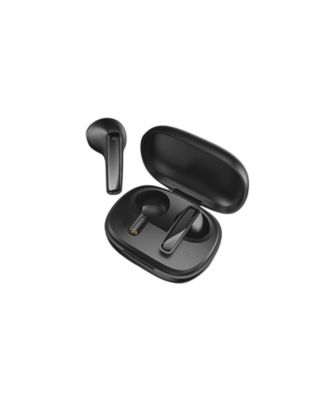
Reconnect, Switch Devices, and Use One Earbud
Once paired, earbuds should auto-reconnect to the last device when you open the case. Still, it helps to manage devices well. Here is how to connect Brookstone wireless earbuds again without hiccups.
Reconnecting
- Open the case near the last paired device.
- Make sure Bluetooth is on. Wait a few seconds.
- If it does not connect, tap the Brookstone entry in your Bluetooth list.
Switching devices
- Turn off Bluetooth on the current device, or remove the earbuds from its Bluetooth list.
- Open Bluetooth on the new device and pair there.
- Some models can remember several devices but only connect to one at a time.
Single-earbud mode
- Leave one earbud in the case.
- Pair or reconnect with only the bud you will use.
- To return to stereo, place both earbuds in the case, close the lid, then reopen.

Troubleshooting: When Brookstone Earbuds Will Not Connect
If you still need help with how to connect Brookstone wireless earbuds, try these proven fixes. These steps cover power, pairing memory, distance, and system bugs.
Common fixes
- Charge everything. Low batteries cause odd behavior.
- Forget and re-add. Remove the earbuds from the Bluetooth list, then pair again.
- Move closer. Stay within a few feet and away from Wi‑Fi routers and microwaves.
- Restart both the phone and the earbuds.
- Update your device OS. System Bluetooth updates often help.
Android Bluetooth cache reset
- Go to Settings, then Apps, then Show system.
- Find Bluetooth or Bluetooth MIDI Service.
- Tap Storage, then Clear cache, and restart the phone.
Windows quick clean-up
- Remove earbuds from Bluetooth devices.
- Run Windows Update.
- Restart, then add the earbuds again.
Mac quick clean-up
- Remove the earbuds in Bluetooth settings.
- Restart the Mac and the earbuds.
- Pair again from fresh.
TV and console tips
- Some TVs need you to remove other paired audio first.
- If audio lags, use a transmitter that supports a low-latency codec.

Reset Steps For Common Brookstone Models
A full reset clears pairing data and syncs left and right buds. Steps can vary by model, but most follow a pattern. Use this flow if your manual is missing.
- Place both earbuds in the case and keep the lid open.
- Press and hold the case button for 10–15 seconds until LEDs flash or blink twice.
- If there is no case button, press and hold both earbud touch areas for 10–15 seconds while they are out of the case.
- Close the lid for 10 seconds, then reopen and pair as new.
Note: Some models need you to remove the earbuds from your device’s Bluetooth list before you reset them. This helps avoid fast auto-reconnects that block a clean reset.

Improve Sound, Call Quality, and Range
Good pairing is step one. Clear audio and steady calls come next. Here are quick wins based on hands-on use and Bluetooth best practices.
- Fit is king. Try all ear tip sizes. A tight seal boosts bass and blocks noise.
- Clean the contacts. Wipe the gold pins and the case with a dry cloth so buds charge and sync.
- Keep the phone in front pockets. Your body can block the signal.
- Use AAC on Apple gear when possible. On many Brookstone models, that gives better audio than SBC.
- Close other Bluetooth apps that fight for the mic, such as voice recorders.
- Limit interference. Move away from crowded 2.4 GHz Wi‑Fi or switch to 5 GHz on your router.
My Hands-On Tips and Lessons
I have helped friends and clients figure out how to connect Brookstone wireless earbuds across offices, gyms, and flights. A few patterns stand out.
- If one bud is silent, reset both and clean the case pins. This solves half the cases I see.
- Old pairings confuse new phones. Clear the list and start fresh. It feels slow, but it saves time.
- Keep the case handy. Opening the lid starts pairing fast. It is the “home button” for most buds.
- Do not chase rare codecs. Most Brookstone models do not use aptX. Focus on a good fit and a clean reset.
These simple habits make how to connect Brookstone wireless earbuds easy, even when devices fight back.
Quick Answers People Also Ask
Short answers help you act fast. Here are direct replies based on common search questions about how to connect Brookstone wireless earbuds.
Why do my Brookstone earbuds not show up?
They are not in pairing mode or the battery is low. Reset the buds, open the case to pair, and try again near your device.
Can I pair to two devices at once?
Most Brookstone earbuds do not support full multipoint. You can remember more than one device but connect to one at a time.
Do I need a PIN code?
Most pairs do not need a PIN. If asked, enter 0000 or 1234, which are standard defaults.
Frequently Asked Questions of how to connect brookstone wireless earbuds
How long does it take to pair the first time?
Most pairs connect in under one minute. If it takes longer, reset the earbuds and try again close to your device.
How do I connect Brookstone wireless earbuds without the case?
Hold the touch areas on both buds for several seconds to enter pairing mode. Not all models support this, so try with the case first.
Why does only one earbud work during calls?
The mic may be on one side by design, or the other bud lost sync. Reset both earbuds and re-pair to restore stereo and mic handoff.
Can I use Brookstone earbuds with a TV?
Yes, if the TV supports Bluetooth audio. For older TVs or to cut delay, use a Bluetooth transmitter made for TVs.
What should I do if audio lags when watching videos?
Use a low-latency Bluetooth transmitter or enable a low-latency mode if your device offers it. Keeping the phone near line of sight also helps.
Do Brookstone earbuds support noise cancelling?
Some models offer passive isolation only, while others may have basic ANC. Check your model’s specs and adjust tip fit for best noise block.
How do I know the earbuds are fully charged?
Most cases show a solid light when full. Many earbuds stop pulsing and show a steady LED or no light when charging is complete.
Conclusion
You now know how to connect Brookstone wireless earbuds on phones, computers, and TVs, how to reset them, and how to fix pairing problems fast. Use the case to enter pairing mode, keep only one host device active, and reset when in doubt.
Try these steps today, enjoy a clean connection, and save this guide for later. Want more tips like this? Subscribe for updates, or leave a comment with your model and issue—I am glad to help.