
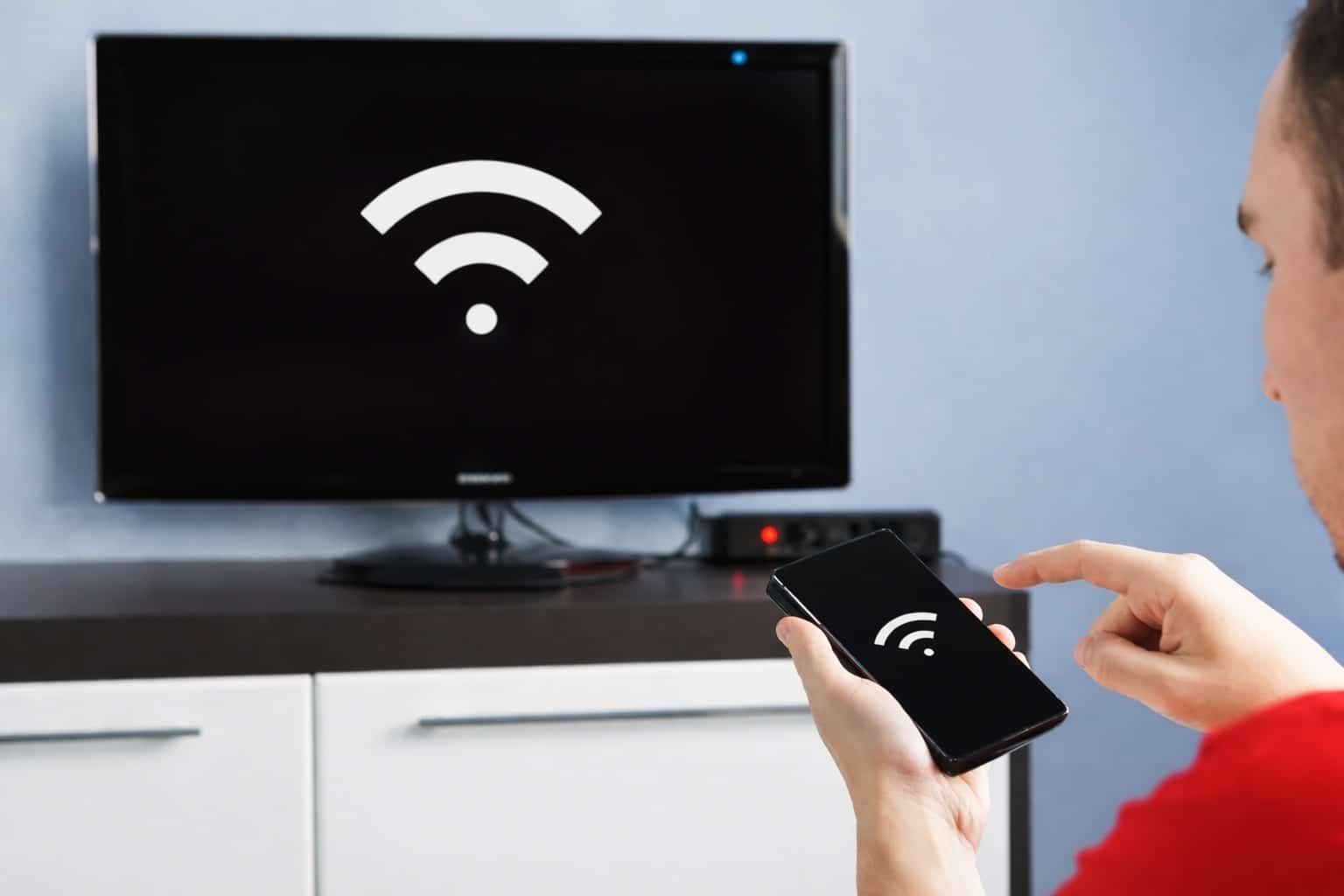
Turn on your phone’s hotspot, then connect your smart TV to it directly.
If you want to know how to connect mobile hotspot to smart tv without wifi, you’re in the right place. I help people do this in homes, hotels, RVs, and cabins. You will learn fast, safe, and stable ways to stream. We will cover Android, iPhone, Roku TV, Fire TV, Google TV, and Apple TV. I’ll share real fixes I use in the field, plus common mistakes to avoid.
What “without Wi‑Fi” really means
Most people mean “no home router or broadband.” That is fine. Your phone becomes the network using its hotspot. Your TV then uses that data to stream.
Some methods also skip a router and do a direct link. Examples include Miracast, AirPlay peer‑to‑peer, and USB or HDMI cables. You will see both styles below. This guide focuses on how to connect mobile hotspot to smart tv without wifi in simple steps.

How to connect mobile hotspot to smart tv without wifi: the quick setup
Follow these steps to get online fast with your phone’s hotspot. This is the easiest way to connect your TV using mobile data.
- On your phone, turn on the hotspot
Android
- Open Settings.
- Tap Network and Internet, then Hotspot and tethering.
- Turn on Wi‑Fi hotspot. Pick a name and a strong password.
- If your TV is older, set the hotspot band to 2.4 GHz.
iPhone
- Open Settings.
- Tap Personal Hotspot.
- Turn on Allow Others to Join.
- Turn on Maximize Compatibility if your TV does not see the hotspot.
- On your TV, connect to the hotspot
- Open Network settings.
- Choose Wi‑Fi or Wireless.
- Pick your phone’s hotspot name.
- Enter the password. You are online.
Tip: If your TV still cannot see the hotspot, rename the hotspot to simple letters and numbers. Avoid spaces and symbols.
Method 1: Use your phone’s hotspot as the TV’s network (most common)
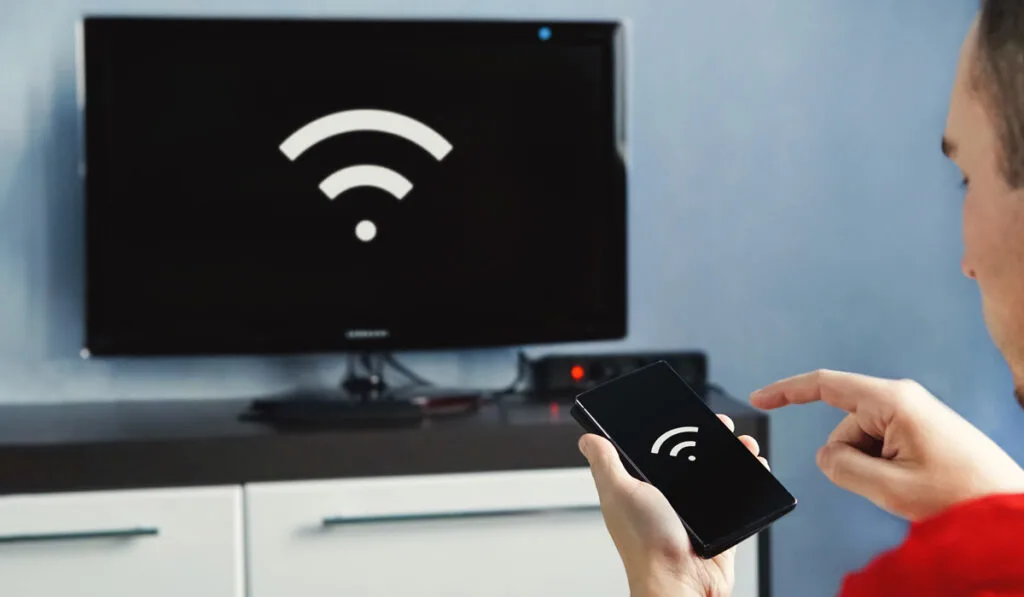
This is the standard method for how to connect mobile hotspot to smart tv without wifi. It works with Samsung, LG, Sony, TCL, Hisense, Vizio, Roku TV, Fire TV, and Google TV.
Key settings that improve success
- Use WPA2 security. Many TVs cannot join WPA3.
- Pick 2.4 GHz if the TV is older. Use 5 GHz for faster speeds if supported.
- Keep the phone near the TV. Short range gives a stronger signal.
- Plug the phone into a charger. Hotspot drains battery fast.
Data use basics
- SD video uses about 1 GB per hour.
- HD video uses about 3 GB per hour.
- 4K video can use 7 GB or more per hour.
Check your plan to avoid slowdowns. Some carriers throttle hotspot after a limit.
Source: youtube.com
Method 2: Wired options when Wi‑Fi is flaky
Sometimes Wi‑Fi is crowded or weak. You can still stream without a router.
Option A: USB‑C to HDMI (mirroring)
- Works on many Android phones and tablets with DisplayPort over USB‑C.
- Use a USB‑C to HDMI cable. Set the TV to that HDMI input.
- Your phone screen appears on the TV. Open your streaming app and play.
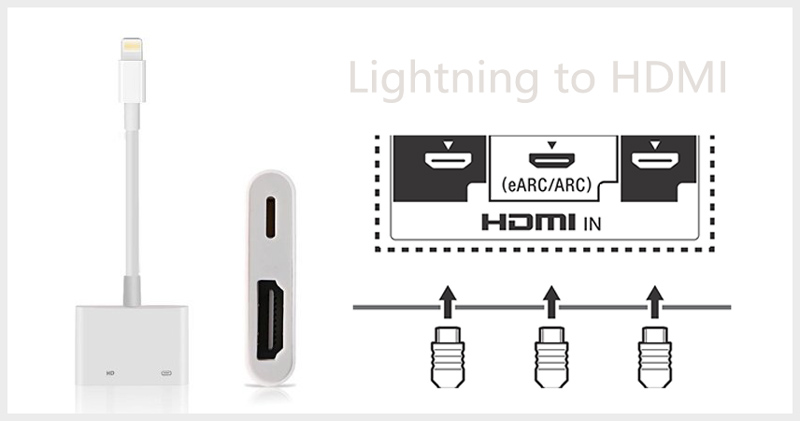
Option B: Lightning to HDMI (iPhone)
- Use the Apple Lightning Digital AV Adapter.
- Connect to HDMI on the TV.
- Open the app and stream.
Option C: USB tether to a travel router
- Connect your phone to a travel router by USB.
- The router shares your phone’s data as Wi‑Fi or Ethernet.
- Connect the TV to that network or by Ethernet cable.
These wired paths avoid radio issues. They are handy in hotels or crowded apartments. They also help if your TV does not support 5 GHz.

Method 3: Peer‑to‑peer casting without a router
You can send video to the TV without a traditional Wi‑Fi network. This is still part of how to connect mobile hotspot to smart tv without wifi, because no home router is used.
AirPlay peer‑to‑peer (iPhone and Apple TV or AirPlay‑compatible TV)
- Turn on Wi‑Fi and Bluetooth on the iPhone. Do not join a network.
- Put Apple TV or the AirPlay TV into pairing range.
- On iPhone, open Control Center and tap Screen Mirroring.
- Pick the TV. Enter the code if asked. You are mirroring.
Miracast or Wi‑Fi Direct (Android to compatible TVs)
- On the TV, enable Screen Mirroring, Miracast, or Wi‑Fi Direct.
- On the phone, open Cast or Smart View.
- Pick the TV and approve the request on the TV.
Chromecast with a phone hotspot (needs two devices)
- Device A: Turn on the phone hotspot.
- Device B: Connect to that hotspot and open Google Home.
- Set up Chromecast on the hotspot.
- Now cast from Device B. Chromecast and Device B stay on the hotspot.
These paths work well when the goal is how to connect mobile hotspot to smart tv without wifi in places with no router, like cabins or dorms.

Optimize speed, data, and stability
Small tweaks make a big difference when using a hotspot.
Speed tips
- Keep the phone near a window for better cell signal.
- Use 5 GHz hotspot if both phone and TV support it.
- Close background apps on the phone.
Data control
- Lower streaming quality to HD or SD when needed.
- Download shows on the phone over public Wi‑Fi first. Then play offline by HDMI.
- Turn off auto‑play and previews.
Battery and heat
- Keep the phone on a charger.
- Remove thick cases. Heat kills speed.
- Use a short, good cable for wired options.
These habits help whenever you try how to connect mobile hotspot to smart tv without wifi for road trips or travel.

Troubleshooting guide
If it does not work the first time, try these quick fixes.
TV does not see the hotspot
- Set hotspot to 2.4 GHz. Many older TVs cannot use 5 GHz.
- Rename the hotspot to simple text.
- Toggle the TV’s Wi‑Fi off and on. Power cycle the TV and phone.
TV connects but no internet
- Turn off VPN on the phone.
- Check carrier data or hotspot limits.
- Change DNS on the TV to 8.8.8.8 and 1.1.1.1.
Random drops or buffering
- Move the phone closer to the TV.
- Plug the phone into power. Heat causes throttling.
- Lower stream quality to 720p.
Cannot cast to Chromecast on a hotspot
- Use a second device for setup and control.
- Reset Chromecast and set it up on the hotspot again.
These steps solve most issues with how to connect mobile hotspot to smart tv without wifi in the real world.

Safety, limits, and gotchas
Security
- Use a strong hotspot password with WPA2.
- Do not use open hotspots.
- Forget the hotspot on the TV when done.
Carrier rules
- Some plans cap hotspot at a few GB.
- After the cap, video may be limited to SD.
- Check your plan to avoid slowdowns or fees.
App restrictions and DRM
- Some services block mirroring on HDMI.
- If a show is blacked out, use the TV app directly via hotspot.
These are normal limits when you try how to connect mobile hotspot to smart tv without wifi for daily use. Plan for them and you will be fine.

Real‑world examples and pro tips
Cabin trip story
I tested how to connect mobile hotspot to smart tv without wifi during a mountain trip. My Android phone was the hotspot. The LG TV saw only 2.4 GHz. After I switched bands, HD streaming worked all weekend. I kept the phone by a cool window and plugged in. Zero drops.
Hotel workaround
A client had a Fire TV that could not join hotel Wi‑Fi with a login page. We used the iPhone hotspot with Maximize Compatibility. The Fire TV connected at 2.4 GHz and streamed HD sports. They kept data in check by setting 720p.
Pro tips I rely on
- Keep a USB‑C to HDMI cable in your bag.
- Carry a tiny travel router for USB tether.
- Label your hotspot with an easy name you recognize fast.
These habits make how to connect mobile hotspot to smart tv without wifi smooth and stress‑free anywhere.
Quick questions people ask
Does this work on any smart TV?
Most modern TVs can join a phone hotspot. Very old models may only see 2.4 GHz and WPA2. If your TV is ancient, use HDMI from the phone.
Will casting drain my battery faster than hotspot only?
Casting and hotspot both use power. Hotspot plus streaming is heavier. Keep the phone on a charger to avoid thermal slowdowns.
Can I play 4K over hotspot?
Yes, if your signal is strong and your plan allows it. But 4K can eat 7 GB per hour or more. Many carriers throttle before that.
When to use each method
Use the standard hotspot method
- You want the fastest and simplest setup.
- Your plan has enough hotspot data.
Use HDMI or USB tether
- You want zero Wi‑Fi issues.
- You need the most stable stream in busy places.
Use peer‑to‑peer casting
- You have Apple TV or a Miracast‑ready TV.
- You want to mirror without any router nearby.
Mix and match based on your gear and plan. That is the heart of how to connect mobile hotspot to smart tv without wifi.
Frequently Asked Questions of how to connect mobile hotspot to smart tv without wifi
Why can’t my TV find my phone’s hotspot?
Your TV may not support 5 GHz or WPA3. Set your hotspot to 2.4 GHz and WPA2, then try again.
Is it safe to use a hotspot with my TV?
Yes, if you use a strong password and WPA2. Avoid open hotspots and forget the network after use.
How much data will I use per hour?
Typical HD uses about 3 GB per hour. SD is about 1 GB, and 4K can reach 7 GB or more.
Can I connect a Roku or Fire TV Stick to a hotspot?
Yes. Turn on the hotspot, then connect the streaming stick to it like any Wi‑Fi. If setup fails, use a second device to manage the app.
Why does my video look choppy on a hotspot?
Weak cell signal or phone heat can cause drops. Move the phone near a window, plug it in, and lower stream quality.
Will Bluetooth tethering work for streaming?
Bluetooth is slow and best for basic browsing. For video, use Wi‑Fi hotspot, HDMI, or USB tether to a router.
Conclusion
You can stream anywhere with a phone and a TV. Pick the best path for your gear and plan: hotspot, HDMI, USB tether, or peer‑to‑peer casting. Keep data and heat in check, and you will enjoy smooth, simple viewing.
Try one method today and see which suits you best. If this guide helped, share it with a friend, subscribe for more tips, or drop your questions in the comments.