
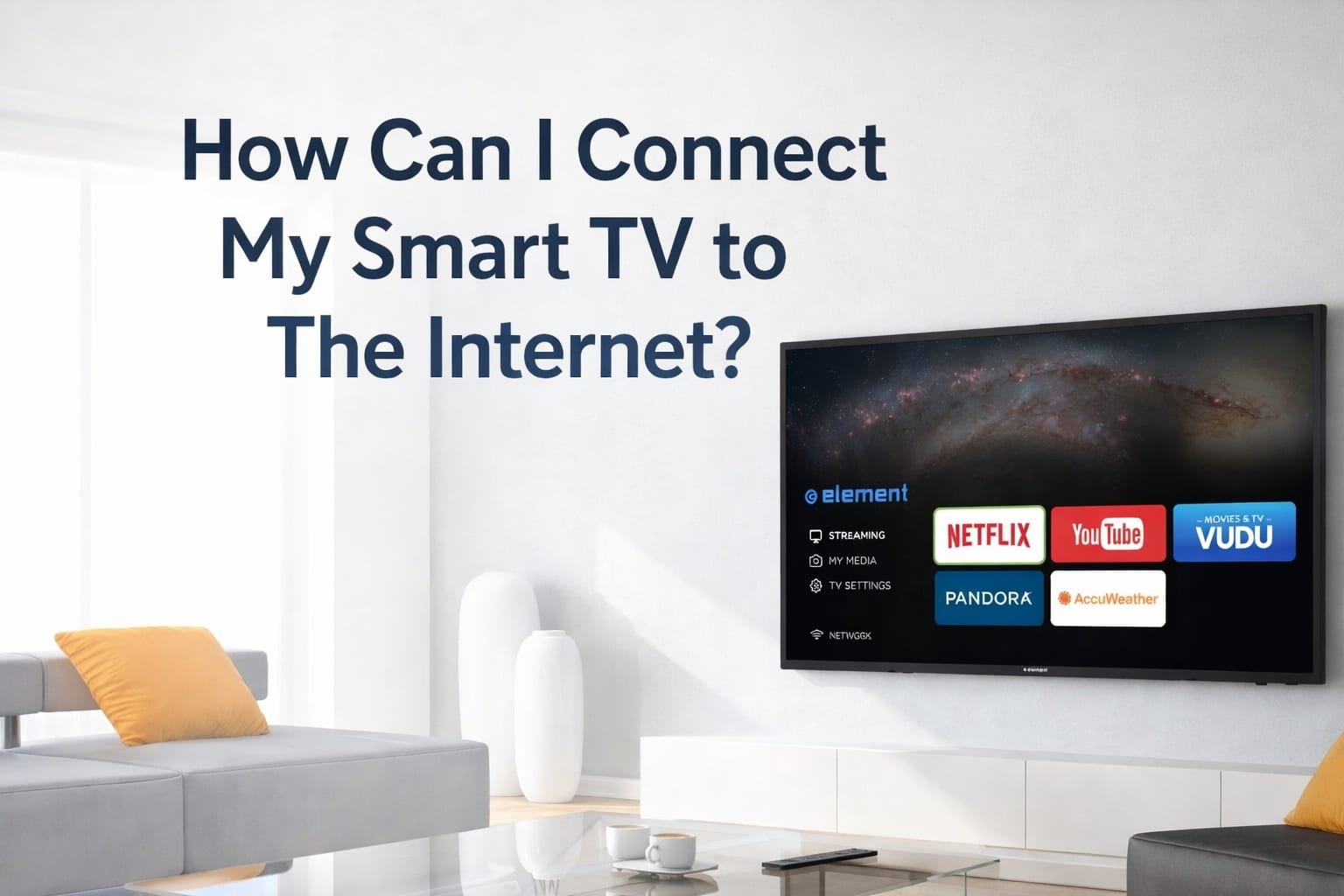
Connect via Wi‑Fi or Ethernet: open Network settings, select your network, enter password.
If you’ve wondered how can I connect my smart TV to the internet, you’re in the right place. I set up home theaters for a living, and I’ve helped hundreds of people get their TVs online fast. In this guide, I’ll share clear steps, expert tips, and common fixes so you can stream without stress and know exactly how can i connect my smart tv to the internet the right way.
Source: samsung.com
What you need before you start
A few quick checks will save you time and stress.
- A working internet connection from your router or modem.
- Your Wi‑Fi network name (SSID) and password, or an Ethernet cable.
- Your TV remote and the TV’s Settings menu path.
- Optional: Your router app or admin page for advanced tweaks.
Menu paths differ by brand. Here are common routes:
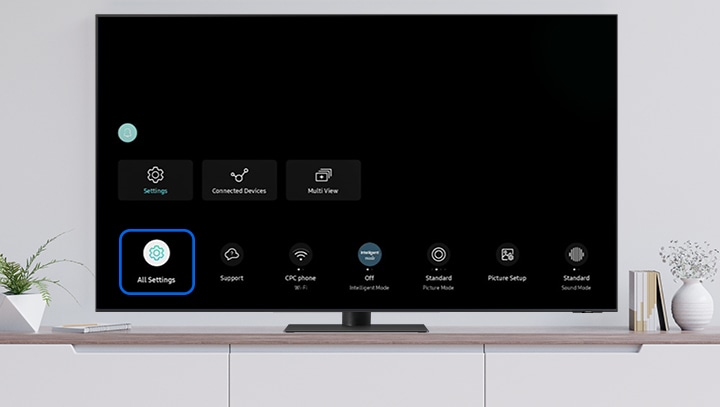
- Samsung: Settings > General > Network > Open Network Settings
- LG (webOS): Settings > All Settings > Network > Wi‑Fi Connection
- Sony/Google TV: Settings > Network & Internet
- Roku TV: Settings > Network > Set up connection
- Vizio: Menu > Network > Network Connection
Source: youtube.com
Method 1: Connect with Wi‑Fi
Wi‑Fi is the easiest path for most homes. Here is how can i connect my smart tv to the internet over Wi‑Fi.
- Open Settings and go to Network or Network & Internet.
- Select Wi‑Fi and let your TV scan for nearby networks.
- Choose your SSID. Type the password carefully.
- Select Connect and wait for a success checkmark or message.
Pro tips from real installs:
- Try the 5 GHz band for faster speeds if your TV supports it. Use 2.4 GHz if the TV is far from the router.
- If the password fails, retype slowly. TVs often time out. Move closer to the router if signal is weak.
- If your TV shows Connected but apps fail, reboot the TV and router. Then try again.
If you ask how can i connect my smart tv to the internet when the Wi‑Fi is hidden, type the SSID by hand. Match uppercase and lowercase letters exactly.

Source: anker.com
Method 2: Connect with Ethernet (wired)
A cable is stable and fast. It is great for 4K and live sports. It is also the best fix for weak Wi‑Fi. Here is how can i connect my smart tv to the internet with a wired link.
- Plug one end of a network cable into the TV’s LAN port.
- Plug the other end into a router or a mesh node.
- On the TV, open Network settings. Choose Wired or Ethernet.
- Your TV should pick up an IP address and show Connected.
Why I like Ethernet:
- Lower lag for gaming and smooth 4K HDR streams.
- Fewer dropouts in apartments with crowded Wi‑Fi.
- Easy to set and forget.
If the port is far, use a powerline adapter or MoCA adapter. They carry internet over your home’s power lines or coax.

Source: youtube.com
Method 3: Use WPS or Easy Connect
Some routers have a WPS button. It lets devices join without typing a password. If you ask how can i connect my smart tv to the internet with less typing, this helps.
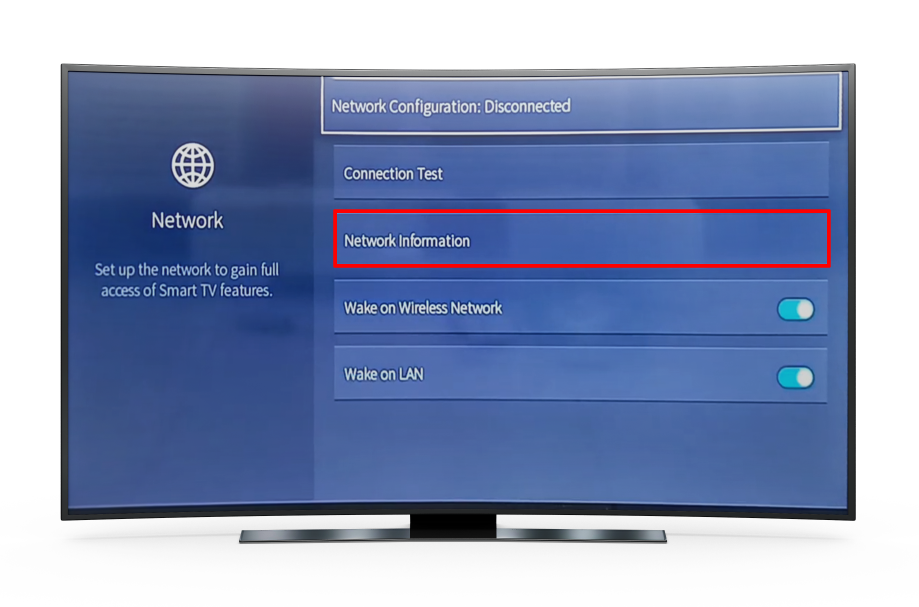
- On your TV, choose WPS or Easy Connect in Network settings.
- Press the WPS button on your router within two minutes.
- Wait for the TV to confirm the link.
Notes from the field:
- WPS may be off by default on newer routers. Check the router app.
- WPS can be less secure than a strong password. Turn it off after pairing.
- If WPS fails, connect by typing the password.

Source: samsung.com
Method 4: Mobile hotspot and travel Wi‑Fi
Need a quick setup in a dorm, hotel, or RV? A hotspot works well. Here is how can i connect my smart tv to the internet when I have no home router.
- Turn on your phone’s hotspot. Set a simple SSID and password.
- On the TV, pick that hotspot network and enter the password.
- Watch your data use. Streaming can eat 1–7 GB per hour.
Travel tips I use:
- Many hotels use a captive portal. Most TVs cannot sign in on a web page. Use a travel router or a laptop to bridge the portal. Then share that Wi‑Fi to the TV.
- Set your hotspot to 5 GHz for better speed if your phone and TV support it.
Source: cinemaximiliaan.org
Method 5: Streaming devices as a workaround
If your TV struggles, a small streamer can help. This is how can i connect my smart tv to the internet in an easy way with an add‑on.
- Plug in a Roku, Fire TV Stick, Chromecast, or Apple TV.
- Connect the device to Wi‑Fi or Ethernet (some need an adapter).
- Sign in to your apps and stream as usual.
Why I suggest this:
- App updates arrive faster on streamers than on many TVs.
- The Wi‑Fi radios on streamers are often stronger.
- It can fix app crashes on older smart TV platforms.

Source: youtube.com
Advanced settings and network optimization
If you ask how can i connect my smart tv to the internet and get the best speed, tune these settings. These tips come from real installs and lab tests.
- Use 5 GHz Wi‑Fi with channels 36–48 or 149–165 for less crowding.
- Place the router high and in the open. Avoid closets and metal racks.
- Update TV firmware and router firmware for better drivers and fixes.
- Set DNS to automatic. If slow, try a public DNS. Test and keep what is stable.
- Turn off MAC filtering unless you add the TV’s MAC address.
- Reserve a DHCP address for the TV in your router. It avoids IP conflicts.
- On mesh systems, keep the TV on the nearest node. Wire that node if you can.
Ethernet tweaks:
- Use Cat5e or Cat6 cables for gigabit speeds.
- Avoid long daisy chains of switches. Keep it simple.

Source: wd.com
Common issues and quick fixes
These are the problems I see most and how to solve them fast. If you still wonder how can i connect my smart tv to the internet without errors, start here.
- Wrong password: Reenter it. Check Caps Lock. Forget the network and add it again.
- Weak signal: Move the router closer. Add a mesh node. Switch to 2.4 GHz for range.
- Connected, no internet: Reboot the router and TV. Check if other devices work.
- App fails but internet works: Update apps and TV firmware. Clear cache if the OS allows it.
- IP conflict: Restart the router. Reserve an IP for the TV.
- Captive portal: Use a travel router, or connect via a laptop bridge.
- Old TV Wi‑Fi issues: Add a streaming stick or switch to Ethernet.

Source: youtube.com
Security and privacy best practices
Getting online is step one. Staying safe is next. When you ask how can i connect my smart tv to the internet and keep it secure, use these habits.
- Use WPA2 or WPA3 security with a strong, unique password.
- Update TV firmware often. Turn on auto updates if offered.
- Disable unused features like remote access, ACR, or voice mics if you do not need them.
- Use a guest network for TVs and IoT devices. Keep them off your main work devices.
- Review privacy settings for ad tracking and data sharing.
- Reboot the router monthly to clear glitches and refresh channels.
Frequently Asked Questions of how can i connect my smart tv to the internet
How can I connect my smart TV to the internet without Wi‑Fi?
Use an Ethernet cable from your router to the TV. If a cable is not possible, try powerline or MoCA adapters to carry the signal over your home wiring.
Why does my TV say connected but apps will not load?
The TV may have an IP but no DNS or gateway. Reboot the router and TV, then test another app or set DNS to automatic.
Can I use a phone hotspot to connect my TV?
Yes, enable the hotspot and connect the TV to it. Watch data limits, as HD and 4K streaming can use many gigabytes.
Which is better for streaming, 2.4 GHz or 5 GHz?
5 GHz is faster and has less interference at short range. Use 2.4 GHz for longer range or through thick walls.
Do I need a streaming device if my TV is already smart?
Not always, but a streamer can be faster and more reliable. It can also support more apps and get updates longer than some TVs.
Conclusion
You now know how can i connect my smart tv to the internet in every common way: Wi‑Fi for ease, Ethernet for speed, WPS for quick setup, hotspots for travel, and streamers as a smart backup. Keep your router close, your firmware current, and your passwords strong. Small tweaks, like a better channel or a wired link, can change your streaming life.
Put one method into action today and enjoy smooth, secure streaming. If this helped, share it, subscribe for more home tech tips, or leave a comment with your setup and wins.