
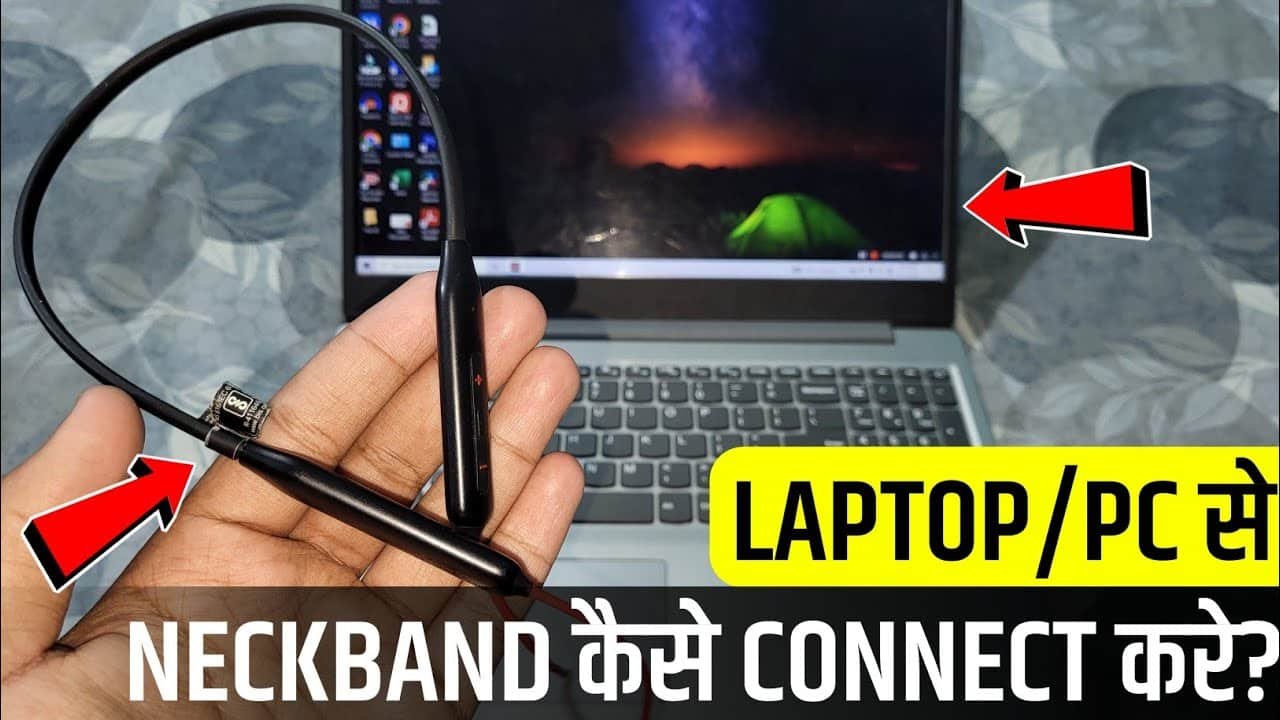
Turn on pairing mode, enable Bluetooth on your laptop, select the neckband, and connect.
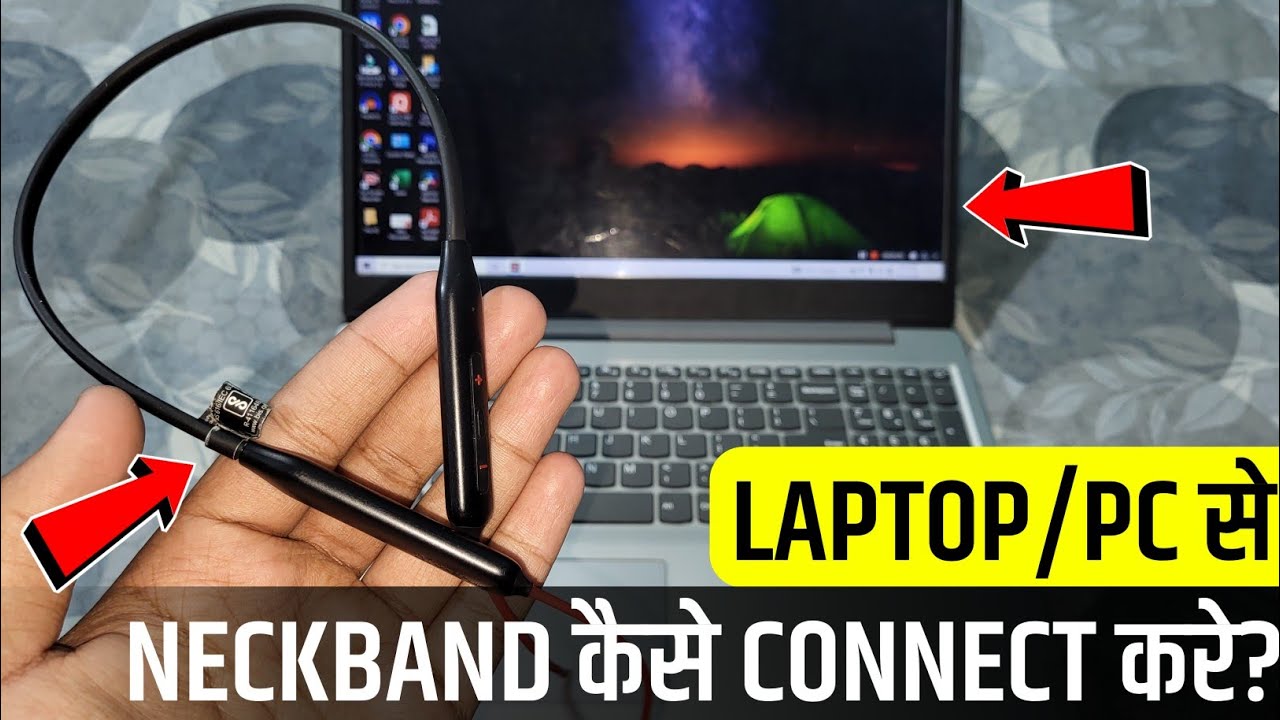
You came to get a simple, reliable method. I’ve helped hundreds of users set up wireless audio on every major system. In this guide, I’ll show you how to connect my neckband to laptop with clear steps, pro tips, and real fixes that work. Stay with me and you’ll leave with perfect sound, a working mic, and fewer headaches.
Source: youtube.com
What You Need Before You Start
A quick checklist sets you up for success. These small steps remove most pairing pain.
- Charge your neckband to at least 30 percent. Low batteries can block pairing.
- Put the neckband in pairing mode. Most models need you to hold the power or multi-function button until a light blinks.
- Make sure your laptop has Bluetooth 4.0 or newer. Bluetooth 5.x improves range and stability.
- Update your system. Install Windows, macOS, Linux, or ChromeOS updates. They often fix Bluetooth bugs.
- Remove old pairings on the neckband if it’s full. Many neckbands store only two to eight devices.
- Stay close. Keep the neckband within three feet of the laptop during pairing.
- Turn off other nearby Bluetooth gear. This avoids fights over the connection.
These checks make how to connect my neckband to laptop easy and fast.

Source: reddit.com
How Bluetooth Pairing Works in Plain English
Bluetooth is a short-range wireless link. Your laptop acts as the host. Your neckband acts as a headset with speakers and a mic.
- When you pair, the devices trade keys and save a trusted bond.
- After that, they reconnect fast and use profiles like A2DP for music and HFP/HSP for calls.
- Codecs like SBC, AAC, aptX, or LDAC compress audio so it streams with low delay.
Knowing this helps you fix issues and improve quality later.

Source: youtube.com
Step-by-Step: Connect on Windows 11 or Windows 10
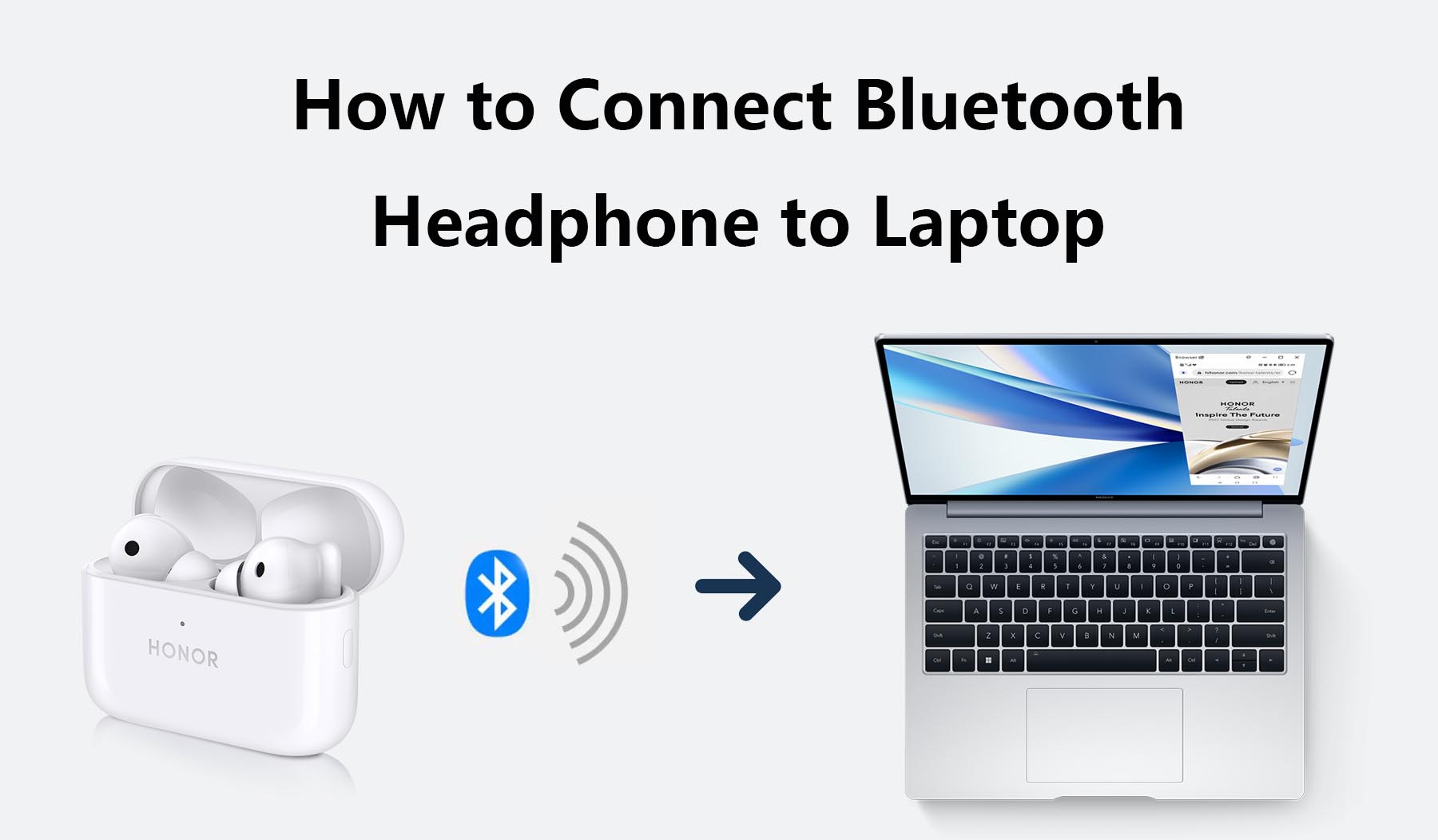
Here is how to connect my neckband to laptop on Windows. The flow is simple and works on both versions.
- Turn on pairing mode on the neckband. Wait for the LED to blink.
- On your laptop, open Settings. Go to Bluetooth & devices.
- Turn Bluetooth on. Click Add device. Choose Bluetooth.
- Select your neckband from the list. Wait for “Connected.”
- Open Sound settings. Set Output to your neckband. Set Input to the same device for the mic.
- In Privacy settings, allow microphone access for apps like Teams and Zoom.
- Test. Play a song. Then start a voice recorder to check the mic.
Notes:
- Windows 11 supports AAC. aptX support depends on your adapter and the headset brand.
- If you see two entries for the same device, pick the one with both music and call icons.
This step finishes a big part of how to connect my neckband to laptop on Windows.
Source: honor.com
Step-by-Step: Connect on macOS (Monterey, Ventura, Sonoma)
This is how to connect my neckband to laptop on a Mac with stable results.
- Put the neckband in pairing mode.
- Open System Settings. Click Bluetooth. Turn it on.
- Click Connect next to your neckband name. Wait for “Connected.”
- Go to Sound. Set Output and Input to your neckband.
- If an app cannot hear you, open System Settings, then Privacy & Security, and allow Microphone for that app.
Tips:
- macOS favors AAC for best quality on many neckbands.
- For video edits or music work, set sample rate in Audio MIDI Setup.

Source: youtube.com
Step-by-Step: Connect on Linux and ChromeOS
You are not left out. You can still follow how to connect my neckband to laptop on Linux or ChromeOS.
On Ubuntu or other GNOME desktops:
- Enable pairing mode on the neckband.
- Open Settings. Go to Bluetooth. Toggle it on.
- Click your device name. Pair it.
- Open Sound. Choose the neckband for Output and Input.
- For advanced control, use pavucontrol. Pick A2DP for music, HFP/HSP for calls.
On ChromeOS:
- Click the status area. Enable Bluetooth.
- Select your neckband. Confirm pairing.
- In Settings, set it as the default for Sound input and output.
Source: impulsegamer.com
Use Controls, Mic, and Audio Settings
To finish how to connect my neckband to laptop the right way, set the controls and mic for daily work.
- Media keys: Play, pause, and skip should work in apps like Spotify and YouTube.
- Volume buttons: Control laptop output or the headset mix. Try both the system slider and the device buttons.
- Mic choice in apps: In Zoom, Teams, or Meet, open the audio menu. Select the neckband for Speaker and Microphone.
- Rename the device: A clear name helps when you have many gadgets.
- Turn off auto-switch: Some brand apps let you stop random device jumps.
A quick five-minute test saves you from live-call stress.

Source: youtube.com
Troubleshooting: When Your Neckband Won’t Connect
If how to connect my neckband to laptop fails, try these fixes I use on support calls.
- Forget and re-pair: Remove the device on your laptop and on the neckband. Pair again.
- Reset the neckband: Check the manual. Often it’s a long button hold until a color change.
- Update drivers and firmware: Use Windows Update or your laptop maker’s tool. Some brands offer headset firmware in their app.
- Kill conflicts: Turn off Bluetooth on your phone during first pairing.
- Move closer: Walls and Wi‑Fi can cause drops. Pair within one meter.
- Change Wi‑Fi band: Switch your router or laptop to 5 GHz to reduce 2.4 GHz noise.
- Use a USB Bluetooth 5 dongle: Older laptops may have weak radios.
- Privacy checks: On Windows and macOS, allow microphone access in settings.
- Power settings: Disable Bluetooth power saving that suspends the radio during calls.
If you still have issues, a fresh reboot of both devices fixes many hidden states.
Source: impulsegamer.com
Advanced Tips: Audio Quality, Latency, and Multipoint
Once you learn how to connect my neckband to laptop, tune for the best sound and lowest lag.
- Codecs:
- Windows 11 supports SBC and AAC. aptX needs device support in both the dongle and the neckband.
- macOS prefers AAC. It does not use aptX on most Macs.
- Linux with PipeWire can enable aptX, aptX HD, and LDAC if licensed and configured.
- Music vs calls:
- Music uses A2DP with high quality.
- Calls use HFP/HSP and can lower quality to enable the mic. This is normal.
- Gaming and sync:
- For lowest delay, use aptX Low Latency if both ends support it. It is rare on neckbands.
- If delay matters, a low-latency dongle can help more than built-in Bluetooth.
- Multipoint:
- Many neckbands connect to two devices at once. Pair with your laptop first. Then pair your phone. Use device buttons to switch active audio.
I learned these tweaks setting up editors and podcasters. Small codec choices can cut delay and improve clarity.

Source: youtube.com
Safety, Battery, and Care
Good care keeps your connection smooth. It also keeps you safe.
- Keep volume under 60 percent for long sessions. Your ears will thank you.
- Charge with a quality cable. Avoid heat and cold during charging.
- Clean ear tips weekly. Dust on mics and drivers hurts call quality.
- Update firmware in the brand app when offered.
- Store the neckband flat. Do not bend cables hard.
A clean, charged device makes how to connect my neckband to laptop faster next time.
Frequently Asked Questions of how to connect my neckband to laptop
Why is my laptop not finding my neckband?
Your neckband may not be in pairing mode or is already linked to another device. Turn Bluetooth off on other devices and retry the scan within three feet.
Can I connect a neckband to a laptop and phone at the same time?
Yes, if your neckband supports multipoint. Pair with the laptop first, then the phone, and switch audio as needed.
How do I use the neckband mic in Zoom or Teams?
Open the app’s audio settings and choose the neckband for Speaker and Microphone. Do a test call to confirm levels.
Do I need a Bluetooth adapter for a desktop PC?
If your PC has no Bluetooth or has an old radio, a USB Bluetooth 5 dongle helps. It often improves range and stability.
How do I reset my neckband to fix pairing issues?
Most models reset by holding the power or multi-function button for 10–15 seconds until the LED changes. Check your manual for the exact steps.
Why does music quality drop during calls?
Calls switch to a hands-free profile so the mic can work, which lowers audio quality. This is normal on Bluetooth headsets.
How can I reduce audio delay when watching videos?
Use a codec with lower latency like aptX LL if both sides support it. Closing heavy background apps and staying close to the laptop also helps.
Conclusion
You now know how to connect my neckband to laptop on any modern system. You can pair fast, choose the right mic, fix drops, and even tune codecs and latency. Take five minutes today to set it up, rename your device, and run a test call. Your next meeting, movie, or mix will be smooth and stress free.
If this helped, try another tip from our audio guides, subscribe for more how-tos, or drop a comment with your neckband model and wins.


One Comment