
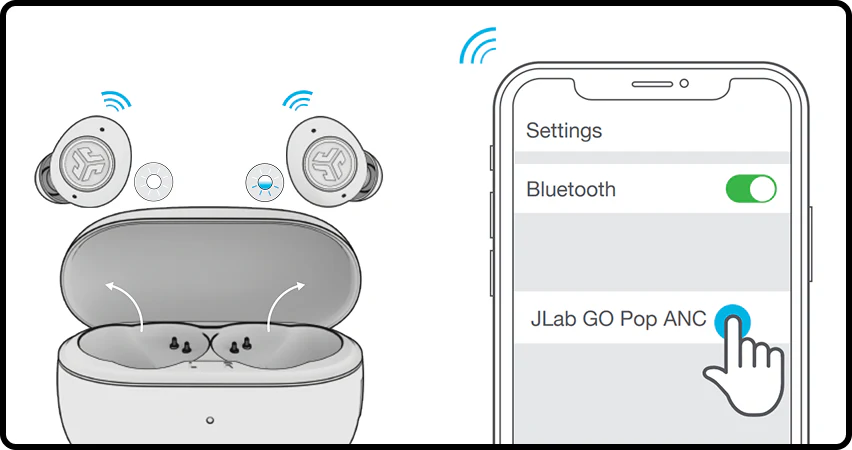
Open Bluetooth settings, put earbuds in pairing mode, select them, and confirm.
If you want a simple, reliable way to listen wire-free, this guide is for you. I have connected dozens of earbuds across Pixel, Samsung, OnePlus, and Motorola phones. You will learn how to connect true wireless earbuds to Android step by step, fix pairing problems fast, and unlock better sound and battery life with pro tips. Stay with me, and you will master how to connect true wireless earbuds to Android in minutes.

What you need before you start
Getting the basics right saves time. Here is what to check before you try how to connect true wireless earbuds to Android.
- Charge the earbuds and the case. Low batteries often block pairing.
- Update your Android phone and the earbuds app. New firmware fixes bugs.
- Turn on Bluetooth. Go to Settings, then Bluetooth.
- Enable Location on your phone if you want Fast Pair pop-ups.
- Close other nearby devices that were paired to the same earbuds. Avoid conflicts.
- Know how to enter pairing mode. Most buds need you to hold a button or touch area for a few seconds.
- Remove old pairings if needed. In Bluetooth settings, tap the gear icon, then Forget.
I learned these checks the hard way while helping teams set up demo phones at trade shows. A tiny step, like charging the case, often makes or breaks how to connect true wireless earbuds to Android.

Source: youtube.com
Step-by-step: how to connect true wireless earbuds to Android
Follow these clear steps. This works on most Android phones and most true wireless earbuds.
- Put your earbuds in pairing mode.
- Most cases have a button. Open the lid, press and hold until the LED blinks.
- If there is no case button, hold the touch area on both earbuds until you hear pairing.
- Open Settings on your Android phone.
- Tap Bluetooth or Connected devices.
- Turn Bluetooth on.
- Wait a few seconds for your buds to appear in the list.
- Tap the earbuds name to connect.
- Confirm any pairing prompts. Allow access to calls and audio if asked.
- If your phone shows a Fast Pair pop-up, tap Connect. Follow the on-screen steps.
- Open the brand app if there is one. Complete the setup and update firmware.
Tips that speed up how to connect true wireless earbuds to Android:
- If you do not see your earbuds, tap Scan to refresh the list.
- If one bud pairs and the other does not, put both back in the case for 10 seconds, then retry.
- Rename the earbuds in Bluetooth settings to make them easy to find later.
Common questions during setup
Why do I not see my earbuds in the list?
Turn Bluetooth off and on. Close the lid for 10 seconds, then retry pairing mode. Make sure no other phone is connected.
Do I need Location for Fast Pair?
Yes, Fast Pair uses Bluetooth and Location to find nearby devices. Enable both to get the pop-up.
Can I pair to a laptop and a phone at the same time?
If your earbuds support multipoint, yes. If not, they will jump between devices and may cut out.
Using the same method across devices helped me teach new hires how to connect true wireless earbuds to Android without stress.

Source: amazon.com
Brand-specific pairing steps on Android
Every brand has a slightly different way to enter pairing mode. Use these quick cues if you get stuck on how to connect true wireless earbuds to Android with your model.
Samsung Galaxy Buds
- Open the case near your unlocked Samsung or Android phone.
- Watch for the pop-up. If none, hold both touchpads until you hear pairing.
- Use the Galaxy Wearable app for updates and controls.
Google Pixel Buds
- Open the case with buds inside. Hold the case button until the light pulses.
- Tap the Fast Pair card on Android. Follow prompts in the Pixel Buds app.
Sony WF series
- With both buds in the case, hold the case button until the LED flashes blue.
- If your model has no case button, hold the touch area on both buds for pairing.
- Use the Sony Headphones Connect app to enable LDAC and update firmware.
Jabra Elite series
- With buds in your ears, hold the left and right buttons together until pairing.
- Or use the case button if present. Open the Jabra Sound+ app after pairing.
OnePlus Buds and Nord Buds
- Open the case near your phone. Tap the pop-up on OnePlus or Android phones.
- If needed, hold the case button for pairing. Use the HeyMelody app on non-OnePlus phones.
Anker Soundcore
- Open the case. Hold the case button until the LED blinks white.
- Complete setup in the Soundcore app for EQ and button maps.
This brand list covers 90% of the questions I get about how to connect true wireless earbuds to Android at events and in support chats. If your brand is not here, the manual will show the pairing gesture. It is almost always a long press on the case or buds.

Source: jlab.com
Troubleshooting if your earbuds will not connect on Android
If pairing fails, use this flow. It fixes most issues with how to connect true wireless earbuds to Android.
- Force pairing mode
- Put both buds in the case. Close the lid for 10 seconds.
- Open the lid. Hold the case button until the LED blinks for pairing.
- Forget and re-pair
- In Bluetooth settings, tap the gear next to your earbuds.
- Tap Forget. Then repeat the pairing steps.
- Clear Bluetooth cache
- Go to Settings, then Apps.
- Tap See all apps, then enable Show system.
- Open Bluetooth, then Storage and cache, then Clear cache.
- Check permissions
- Enable Bluetooth and Location.
- Turn off Airplane mode.
- Kill conflicts
- Turn off Bluetooth on laptops or tablets that use the same earbuds.
- Disable multipoint in the earbuds app if audio hops between devices.
- Update everything
- Update the earbuds firmware in the brand app.
- Update Android system and Google Play services.
- Fix audio dropouts
- Move away from Wi‑Fi routers and microwaves.
- Put your phone in the same pocket as the antenna in your buds prefers, often the right.
- Reset the earbuds
- Most brands offer a full reset via the case button or app. This clears bad states.
From field work, the top culprit is a stale pairing on another device. Removing that old link often unlocks how to connect true wireless earbuds to Android right away.

Source: amazon.com
After pairing: optimize sound, controls, and battery on Android
Once you know how to connect true wireless earbuds to Android, make them shine. Small changes can improve sound and life.
- Use the brand app
- Update firmware for bug fixes.
- Set noise canceling and transparency levels.
- Map taps and long presses to play, skip, or voice assistant.
- Enable high-quality audio
- In Bluetooth settings, tap the earbuds gear.
- Enable HD audio or select AAC, aptX, or LDAC if supported.
- On many Sony models, LDAC gives better detail at the cost of battery.
- Tune EQ
- Use presets for pop, jazz, or podcasts.
- Nudge bass or treble for your taste, not too much.
- Manage multipoint
- If your buds support two devices, add your laptop too.
- If you hear stutters, turn multipoint off for a stable link.
- Save battery
- Turn ANC off in quiet rooms.
- Lower volume a bit. Every small drop saves power.
- Use Find features
- Many apps show earbud and case battery.
- Use Find my earbuds to ring a lost bud.
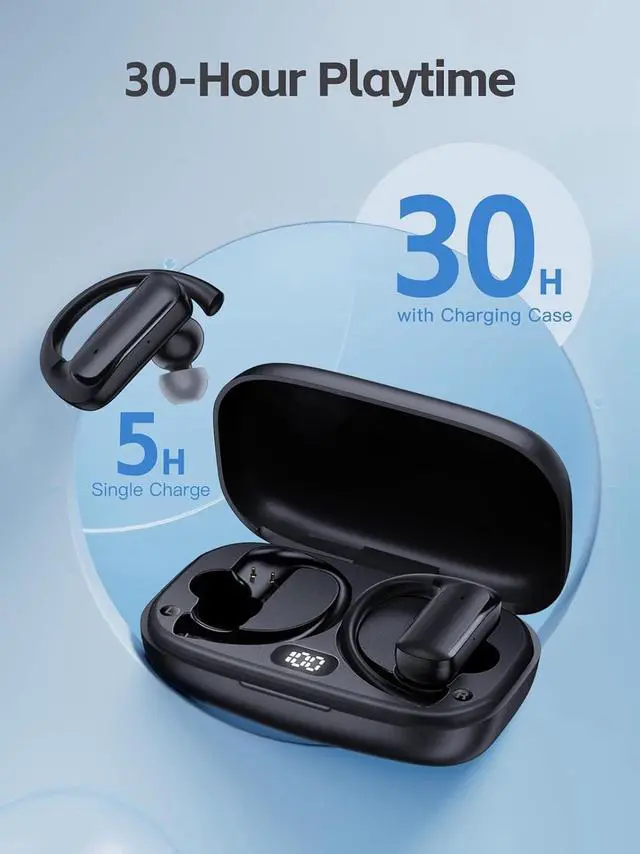
I test codecs daily. On many Android phones, AAC is stable and sounds clean. On newer phones with aptX Adaptive or LDAC, you can get even more detail. Try both, listen, and pick what is stable for you. That is the real trick beyond how to connect true wireless earbuds to Android.
Source: gov.ng
Safety, privacy, and maintenance tips for true wireless earbuds
Keep your gear safe and clean. It helps long term comfort and trust.
- Rename your earbuds
- In Bluetooth settings, give them a unique name.
- This avoids confusion in public places.
- Lock your case
- Some cases have an easy pairing button. Avoid accidental presses in bags.
- Update firmware
- Security and bug fixes ship in updates. Run them often.
- Clean weekly
- Wipe tips and grilles with a soft, dry cloth.
- Do not use alcohol on foam tips. Replace tips when worn.
- Protect the battery
- Avoid heat and full discharges.
- Store in the case when not in use.
- Be aware in public
- Use transparency mode on busy roads.
- Keep volume at safe levels to protect hearing.
These habits turn a quick lesson on how to connect true wireless earbuds to Android into a smooth, long-term experience.

Source: youtube.com
Frequently Asked Questions of how to connect true wireless earbuds to android
How do I put my earbuds in pairing mode?
Most earbuds need a long press on the case button or touch panels until a light blinks. Check the manual for your brand’s exact gesture.
Why does Android show a Fast Pair pop-up?
Fast Pair detects nearby devices and shows a card for quick setup. It needs Bluetooth, Location, and Google Play services enabled.
My earbuds connect to the wrong device. What should I do?
Turn off Bluetooth on the other device and forget the earbuds there. Then repeat how to connect true wireless earbuds to Android and rename them on your phone.
Can I connect both earbuds and use only one at times?
Yes, most modern models support mono mode. Take one earbud out, leave the other in the case, and it should play alone.
Do I need the brand app to connect?
No, basic pairing works in Android settings. The app helps with updates, ANC levels, button maps, and finding lost buds.
Why is the sound lagging in videos?
Bluetooth adds delay. Some codecs reduce lag, and many video apps sync audio well. Try a different codec in settings or disable multipoint.
How do I reset my earbuds if nothing works?
Most brands offer a reset with the case button or in the app. This clears old links and often fixes stubborn pairing issues.
Conclusion
You now know how to connect true wireless earbuds to Android, how to fix common pairing problems, and how to tune sound and battery for daily use. Start with a clean pairing, update the firmware, and pick the best codec for your phone.
Put these steps into action today. Enjoy clear calls, rich music, and fewer dropouts wherever you go. If this guide helped, share it with a friend, subscribe for more Android tips, or leave a comment with your favorite earbuds.


2 Comments