
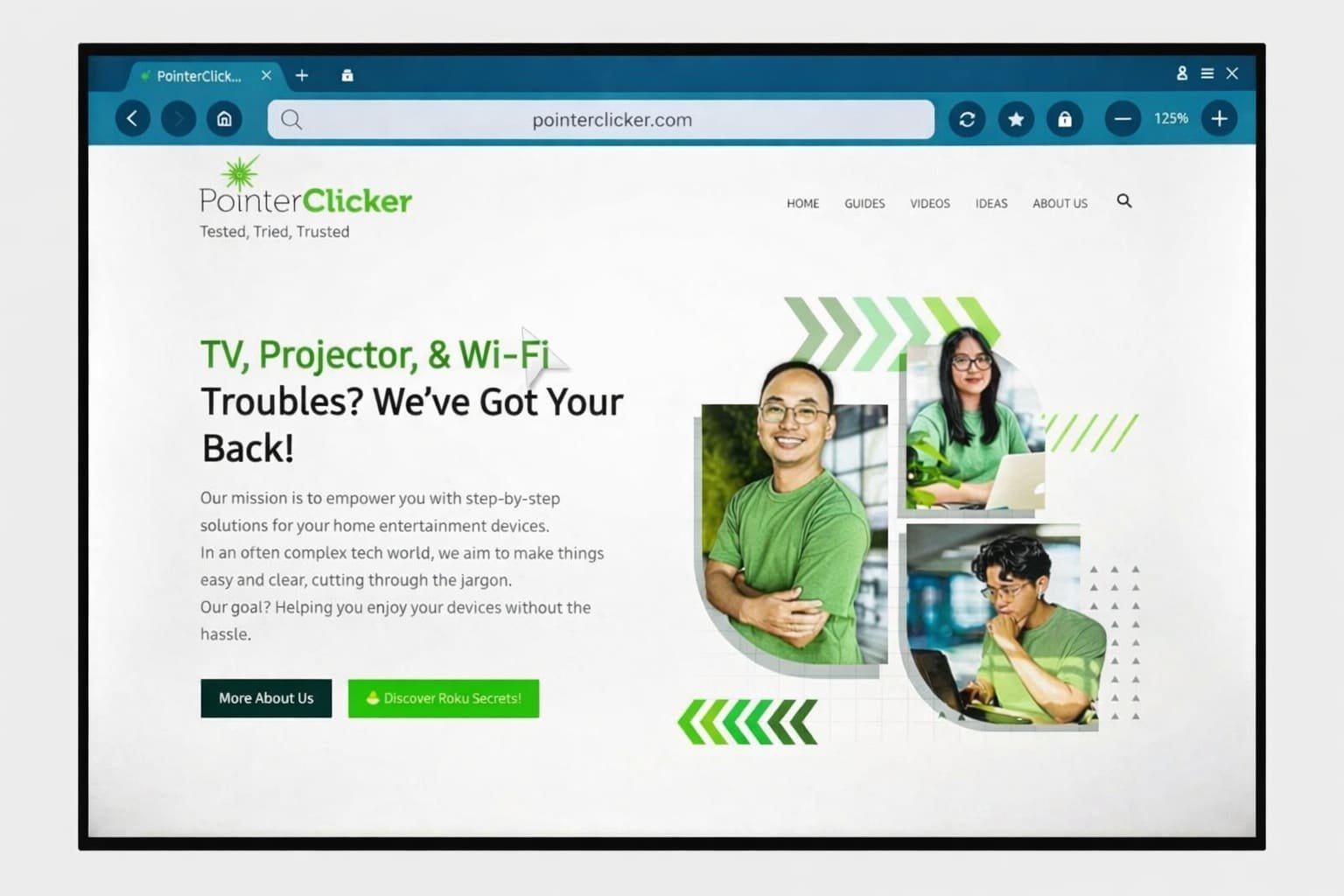
Open your TV’s built-in browser or cast from your phone to start browsing instantly, easily, today.
If you want to know how to browse internet on smart TV, you’re in the right place. I work with smart TVs every day, and I’ve set up dozens of homes to surf the web on the big screen. In this guide, I’ll show you how to browse internet on smart TV using built-in browsers, casting, and simple add-ons. You’ll get clear steps, real examples, and pro tips that make it all feel easy.
Source: samsung.com
What “browsing the internet” on a smart TV really means
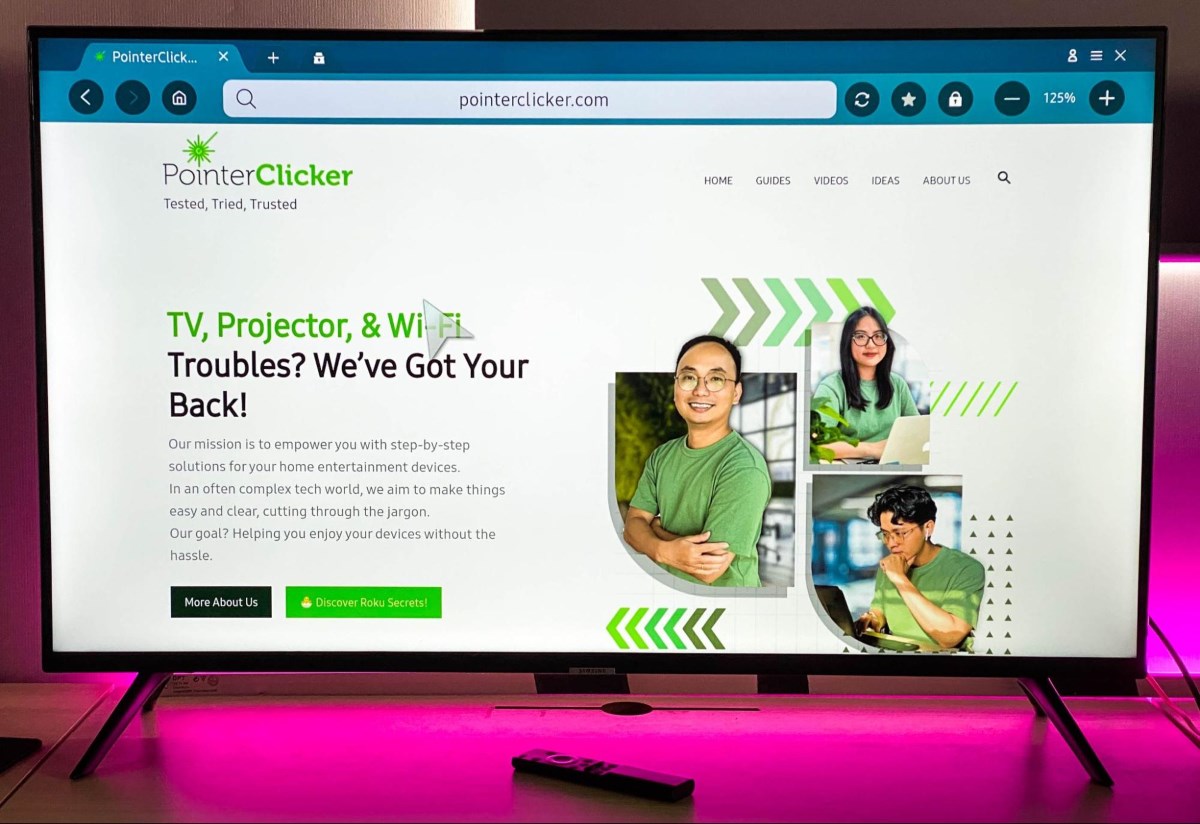
Browsing the web on a smart TV lets you open websites, search, and read content on a large display. It feels a bit like using a tablet with a remote. It works best for reading, shopping, recipes, simple tools, and short videos.
TV browsers are not as fast or flexible as a laptop or phone. Some complex sites and plugins may not work. That is normal. If you want full power, you can cast from your phone or plug in a small PC. This guide explains how to browse internet on smart TV in ways that match your needs.

Source: youtube.com
Quick start: how to browse internet on smart TV in minutes
Try this first. It works on most new models.
- Connect your TV to Wi‑Fi or Ethernet. Open Settings and confirm the network is online.
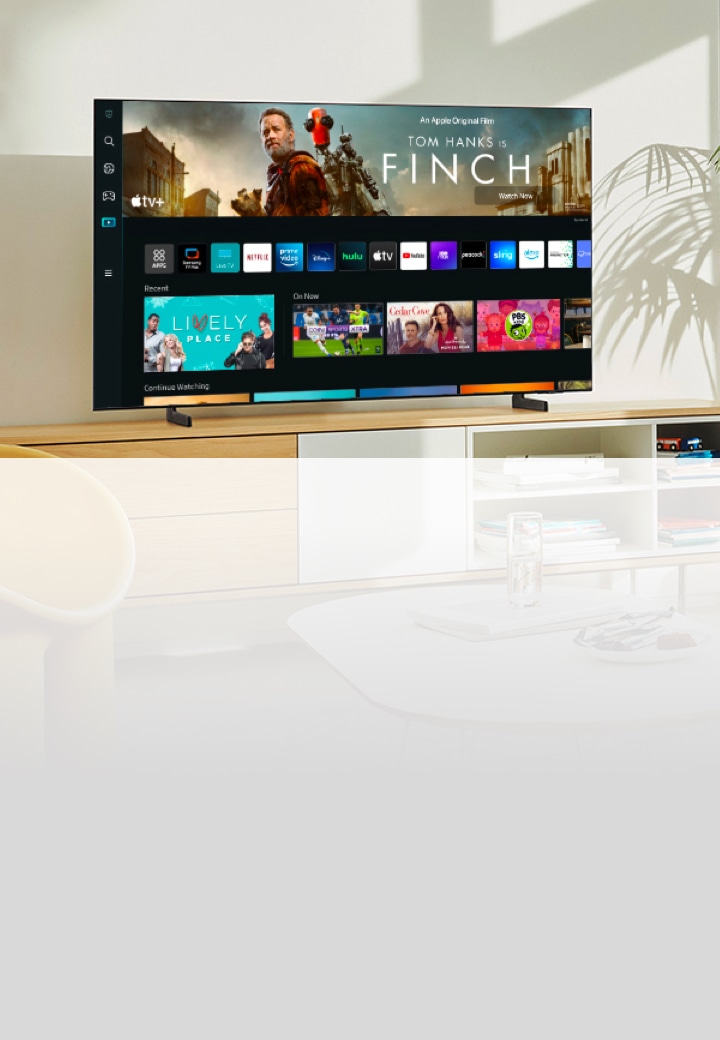
- Press Home on your remote. Look for a Web Browser or Internet app. Open it.
- Use the on-screen search bar. Type a website or use voice search if your remote supports it.
- Adjust zoom if text looks small. Most TV browsers have a zoom option in settings.
- Bookmark your favorite sites. Save them so you can return fast next time.
If your TV has no browser, cast from your phone or laptop:
- On Android or Chrome browser, tap the Cast icon and pick your TV.
- On iPhone, use AirPlay to mirror your screen to the TV.
- On Windows, press Windows + K to connect wireless display; on Mac, use AirPlay.
Pro tip from experience: I keep a small Bluetooth keyboard in the living room. It makes search and logins simple and saves a ton of time.
Source: samsung.com
Platform-specific steps and best options
Different brands handle browsing in different ways. Here’s how to browse internet on smart TV across popular systems.
Android TV / Google TV (Sony, TCL, Hisense, Philips)
• Built-in browser: Often not preinstalled.
• Best options: Install a TV-friendly browser like Puffin TV Browser or TV Bro from Google Play (availability varies by region).
• Steps:
- Open Google Play Store on your TV.
- Search Puffin TV Browser or TV Bro. Install and open.
- Use voice search on your remote to visit sites faster.
• Alternative: Cast from Chrome on your phone or laptop using built-in Chromecast.
Personal note: I like TV Bro for simple reading and YouTube. For secure logins, I cast from my phone where my password manager lives.
Samsung Smart TV (Tizen)
• Built-in browser: It’s called Internet.
• Steps:
- Press Home. Open Internet.
- Enter a site or use the search field.
- Add bookmarks to the home screen for quick access.
• Tip: The on-screen cursor works well with the directional pad. A Bluetooth keyboard makes it even better.
LG Smart TV (webOS)
• Built-in browser: It’s called Web Browser.
• Steps:
- Press Home. Open Web Browser.
- Type a site, search, and add bookmarks.
- If you have the Magic Remote, point and click like a mouse.
• Tip: Enable Reader Mode on some sites for easier reading.
Amazon Fire TV (Fire OS)
• Browser: Amazon Silk (search for Internet in the Appstore).
• Steps:
- Press and hold the voice button. Say “Open Silk browser.”
- Browse or add bookmarks.
- Use the menu to clear cookies or switch search engine.
Roku TV
• Note: Roku has very limited browser options.
• Best approach: Use screen mirroring (Android/Windows) or AirPlay (iPhone/Mac).
• Steps:
- Enable screen mirroring in Roku Settings.
- Cast from your phone or laptop.
• Tip: If you need full browsing often, consider a small streaming stick with a real browser or a mini PC.
Vizio SmartCast
• No full native browser.
• Best approach: Cast via Chromecast or AirPlay.
• Steps:
- Ensure TV and phone are on the same Wi‑Fi.
- Cast from Chrome (Android/Windows) or AirPlay (iPhone/Mac).
This is the most reliable way I’ve found to handle how to browse internet on smart TV across brands without headaches.

Source: youtube.com
Browse by casting or mirroring from your phone or computer
Casting is the simplest answer for many people asking how to browse internet on smart TV. It uses your phone or laptop as the browser but shows it on the TV.
• Chromecast (Android, Chrome on any desktop):
- Tap the Cast icon in Chrome or on your Android quick settings.
- Choose your TV or Chromecast device.
- Browse on your phone or laptop.
• AirPlay (iPhone, iPad, Mac): - Open Control Center. Tap Screen Mirroring.
- Pick your AirPlay-enabled TV or Apple TV.
- Open Safari or Chrome and browse.
• Windows Miracast (many TVs/Fire TV/Roku): - Press Windows + K. Select your TV.
- Choose Duplicate.
- Open your browser and go.
Casting is fast, secure, and uses your saved logins. It is my go-to when I need to fill forms or pay bills.

Source: aiccpn.it
External devices for a full PC-like browser on your TV
If you want desktop-grade browsing, add a small device. This is a great path for how to browse internet on smart TV without limits.
• Mini PC or laptop via HDMI:
- Plug HDMI into your TV. Select the HDMI input.
- Pair a wireless keyboard and mouse.
- Browse with Chrome, Edge, Safari, or Firefox.
• Xbox Series X|S or Xbox One: - Install Microsoft Edge from the Store.
- Use your controller or pair a keyboard.
• Chromecast with Google TV or Fire TV Stick: - For Fire TV, use Silk browser.
- For Chromecast with Google TV, install a TV-friendly browser from Play Store or cast from your phone.
Real-life example: I set up a tiny Intel NUC for a client who runs a bakery. She keeps recipes, supplier portals, and spreadsheets open on her TV while working in the kitchen. Zero lag, full keyboard control, and it never crashes.

Source: youtube.com
Make browsing easier: remotes, keyboards, mice, and voice
Typing with a remote is slow. Here’s how to make it smooth.
• Pair a Bluetooth keyboard and mouse:
• Android TV/Google TV: Settings > Remotes & Accessories > Pair accessory.
• Samsung: Settings > General > External Device Manager > Input Device Manager > Bluetooth.
• LG: Settings > Connection > Bluetooth.
• Fire TV: Settings > Controllers & Bluetooth Devices > Other Bluetooth Devices.
• Use a remote app:
• Install your brand’s remote app on your phone. It adds a phone keyboard and quick paste.
• Use voice search:
• Google Assistant (Android TV/Google TV), Alexa (Fire TV), Bixby (Samsung), or voice on LG.
• Speak website names or search terms to save time.
Pro tip: A compact keyboard with a built-in touchpad is perfect for the couch. It is the best small investment for how to browse internet on smart TV every day.
Source: pointerclicker.com
Privacy, security, and parental controls on TV browsers
Smart TVs are shared devices. Treat them like a public computer at home.
• Prefer casting for logins and payments. Your phone stores passwords more safely.
• Clear browsing data: Look for Clear History and Cookies in the browser settings.
• Update your TV’s firmware to patch bugs and improve performance.
• Use a guest Wi‑Fi network for TVs and IoT devices. It isolates them from your main devices.
• Enable parental controls on your TV and your router. Set content ratings and add DNS filters.
• Avoid sideloading apps from unknown sources. Only install apps from trusted stores.
I once helped a family whose TV auto-logged into a shopping site for guests. We moved all logins to phone casting. No more surprise purchases, and much better peace of mind.

Source: youtube.com
Troubleshooting: fix common browsing problems fast
• Pages load slow or time out:
• Reboot the TV and router.
• Switch to Ethernet or 5 GHz Wi‑Fi.
• Change DNS to a reliable option in your router.
• Browser crashes or freezes:
• Clear cache and cookies.
• Update the TV software.
• Try a lighter browser or use casting.
• “Unsupported plugin” or broken site layout:
• Use casting or a mini PC for full compatibility.
• Hotel Wi‑Fi or captive portals:
• Use a travel router or connect a laptop first, then share to the TV.
• Typing is painful:
• Pair a Bluetooth keyboard or use the phone remote app.
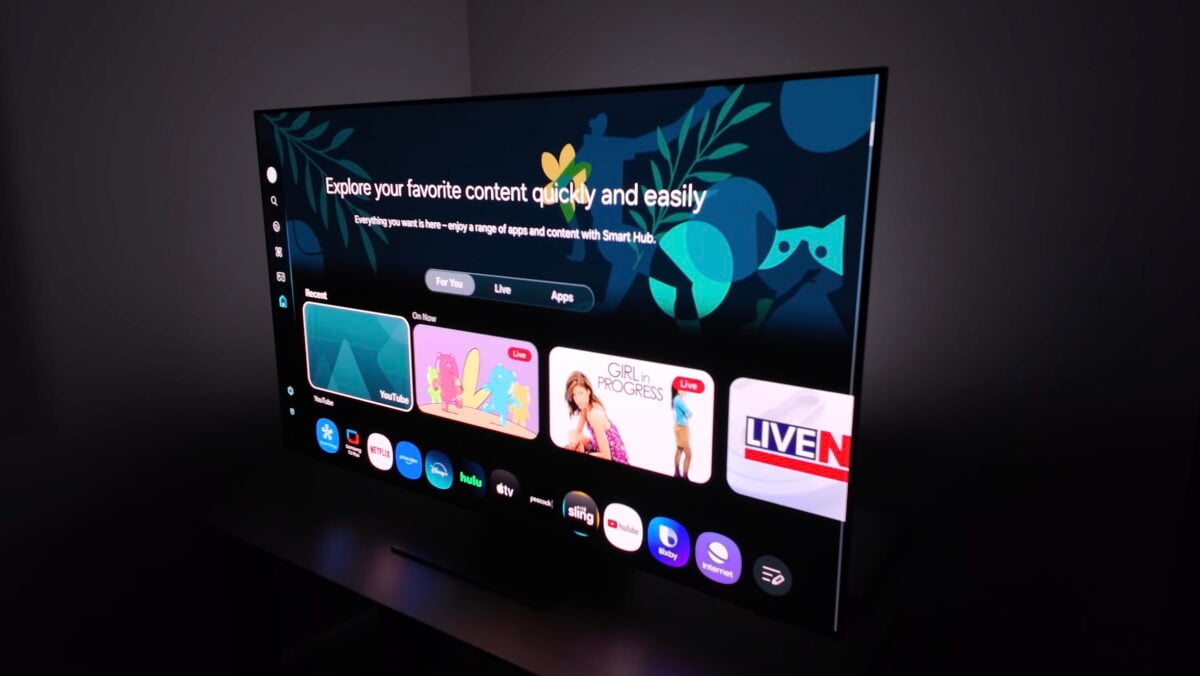
If you still struggle with how to browse internet on smart TV, casting or a mini PC is the stress-free path.
Source: sammobile.com
Frequently Asked Questions of how to browse internet on smart tv
Can I use Google Chrome on my smart TV?
Most TVs do not offer Chrome natively. Use a TV-friendly browser, cast from Chrome on your phone or laptop, or connect a mini PC for the full Chrome experience.
How to browse internet on smart TV without a built-in browser?
Cast or mirror from your phone or computer using Chromecast, AirPlay, or Miracast. You can also add a Fire TV Stick with Silk or plug in a mini PC via HDMI.
Why is my TV browser slow or laggy?
TV processors are tuned for streaming, not heavy web apps. Use Ethernet, clear cache, reduce open tabs, or switch to casting for better speed.
Is it safe to enter passwords on a TV browser?
It can be safe, but it is not ideal. For sensitive accounts, cast from your phone or use a laptop so your password manager and security tools protect you.
How do I connect a keyboard and mouse to my TV?
Use Bluetooth from the TV’s settings to pair both devices. If Bluetooth is not available, plug a USB receiver into the TV’s USB port.
Can I block adult sites on a smart TV?
Yes. Enable parental controls on the TV and set DNS filtering on your router. You can also manage profiles and app restrictions on many platforms.
What is the best way to read long articles on a TV?
Use Reader Mode if your browser supports it or cast from your phone and adjust zoom. A small keyboard lets you scroll and search with ease.
Conclusion
You have many options for how to browse internet on smart TV: built-in browsers for quick tasks, casting for secure logins, and external devices for full power. Pick the method that matches your habits and your home setup, then add a small keyboard to make it feel natural.
Try one approach today and bookmark three favorite sites on your TV. If this guide helped, share it with a friend, subscribe for more living room tech tips, or leave a comment with your setup and questions.






2 Comments